Installation & Update
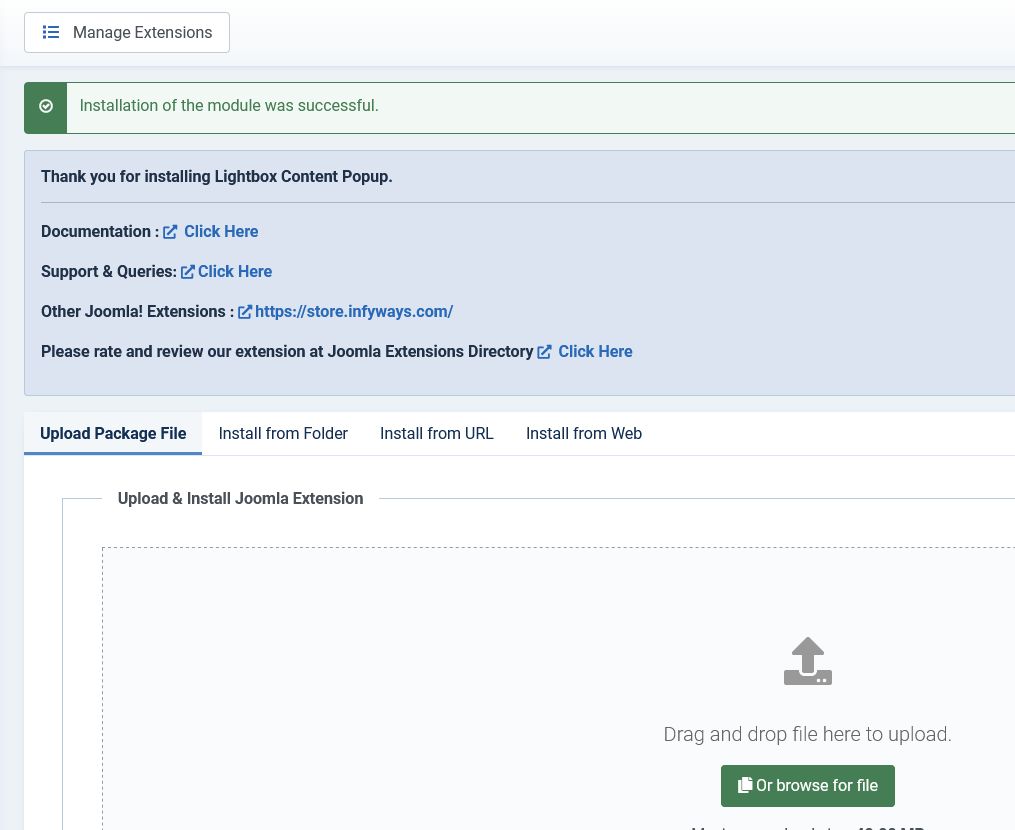
New installation
- Download mod_lightbox_popup_6.0.zip.
- Sign in to the Joomla administrator.
- Open System > Install > Extensions.
- Use Upload Package File and select the downloaded zip.
- Wait for the installation success message.
Create and publish a module
- Open Content > Site Modules.
- Select New, then choose Lightbox Content Popup.
- Configure Content Source, Gallery Cards, and Lightbox.
- Select a template position and assign the required menu items.
- Set Status to Published. Hiding the standard module title is recommended.
- Save and check the assigned page on the front end.
Updating from version 5.x
Install version 6.0 over the existing module using Joomla's extension installer. Joomla keeps existing module instances and parameters where possible. Version 6.0 maps basic legacy orientation and animation values, but its front-end engine and settings are new.
After updating, open each module instance, review its Content Source, Gallery Cards, and Lightbox tabs, then save it once. Clear Joomla and browser caches to remove old FancyBox assets.