Dashboard
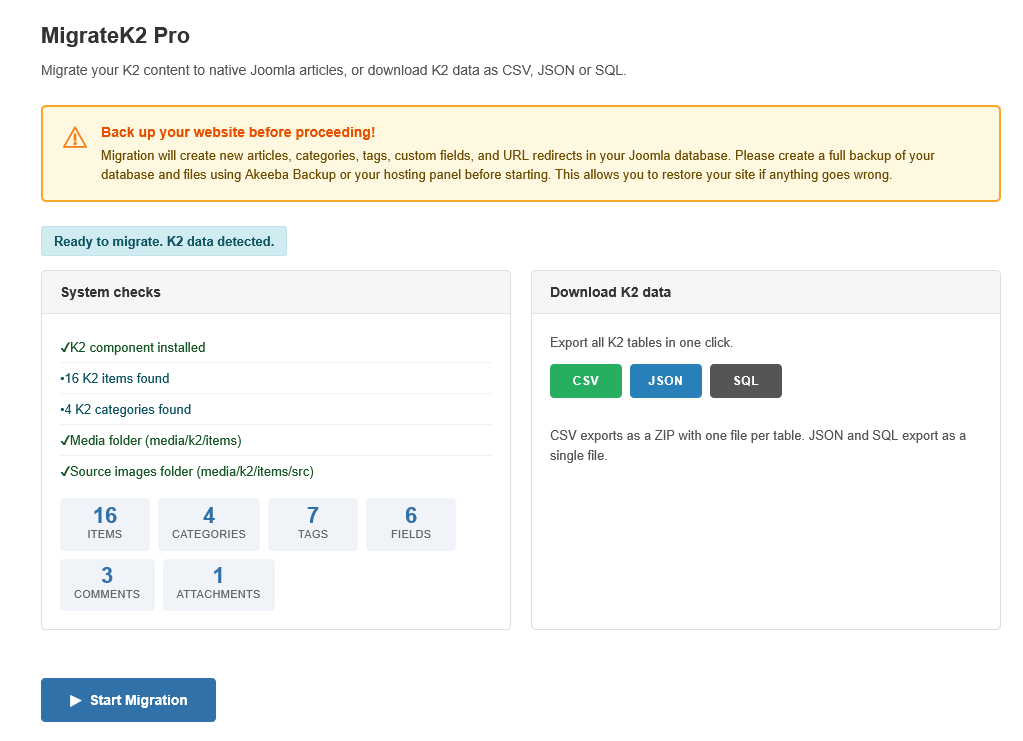
Dashboard Overview
The Dashboard is the landing page when you open MigrateK2 Pro. It provides a complete overview of your K2 data and migration status.
Status Banner
A colored banner at the top shows the current state:
- Green — Migration complete: All K2 data has been imported into Joomla
- Yellow — In progress: Migration was started but not yet finished. Click Continue to resume.
- Blue — Ready: K2 data detected, ready to migrate
- Red — Error: K2 is not installed or not detected
System Checks Panel
The left panel runs automatic pre-flight checks:
- K2 component installed — verifies K2 exists in the extensions table
- K2 items found — shows the count of K2 items (excluding trashed if configured)
- K2 categories found — shows the count of K2 categories
- Media folder — checks that
media/k2/itemsexists - Source images folder — checks that
media/k2/items/srcexists
Content Preview Counters
Below the system checks, counter badges show exactly what will be migrated:
- Items — total K2 items
- Categories — total K2 categories
- Tags — total published K2 tags
- Fields — total published K2 extra fields
- Comments — total K2 comments (available for export)
- Attachments — total K2 attachments (available for export)
Quick Export Panel
The right panel provides one-click export buttons:
- CSV — downloads a ZIP file containing one CSV per K2 table
- JSON — downloads a single JSON file with all K2 data
- SQL — downloads INSERT statements ready to import elsewhere
These export all K2 tables at once. For selective table export, use the Download section on the Migration page.
Action Buttons
Below both panels, context-aware action buttons appear:
- Start Migration — appears when no migration has been run yet
- Continue Migration — appears when a migration was interrupted
- View Migration Details — appears after migration is complete
- Reset & Remove Migrated Data — appears after migration (or partial migration)
- View Log — opens the migration activity log