Running a Migration
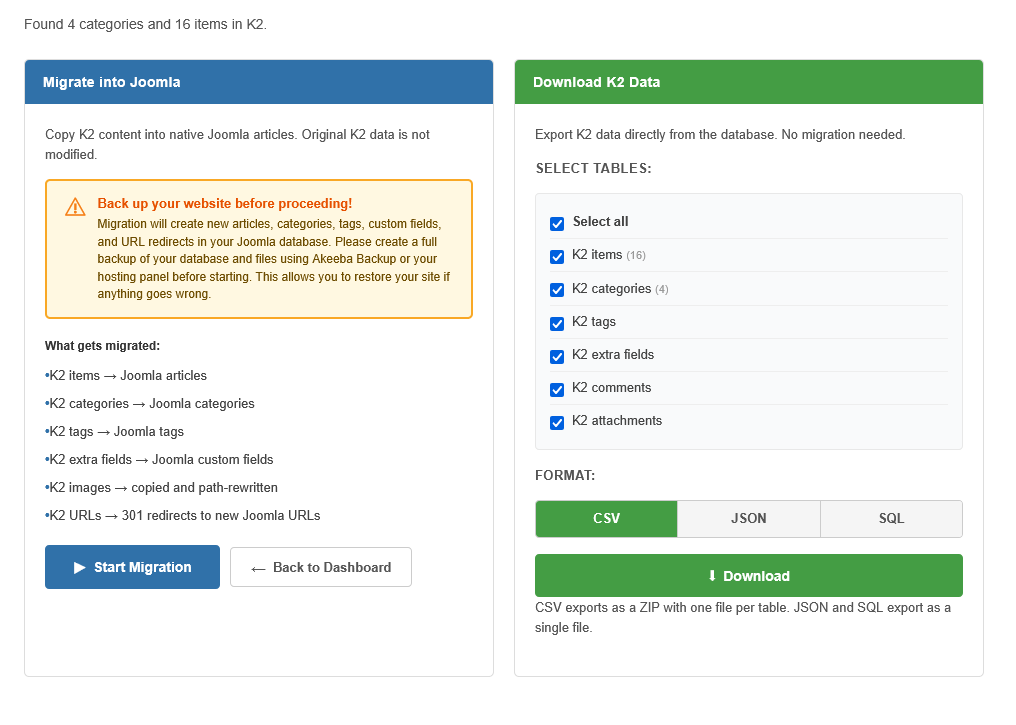
Before You Start
⚠ Create a full backup of your website before migrating.
Use Akeeba Backup, your hosting panel's backup tool, or a manual database dump. Migration adds content to your Joomla database — having a backup allows you to restore if anything goes wrong.
Step-by-Step Migration
- Open the Migration page: Go to Components > MigrateK2 Pro, then click Start Migration or View Migration Details
- Review what will be migrated: The left panel lists everything that will be copied: items, categories, tags, extra fields, images, and URL redirects
- Click Start Migration: A confirmation dialog asks if you have created a backup. Click OK to proceed.
- Watch the progress: The live progress bar shows the current phase and item count
- Wait for completion: The bar turns green and shows "100%" when finished
Migration Phases
The migration runs in four sequential phases:
- Categories — K2 categories are created as Joomla categories, preserving the parent-child hierarchy. Existing categories with matching aliases are reused.
- Custom Fields — K2 extra field groups and fields are created as Joomla custom field groups and fields. Types are mapped automatically.
- Tags — K2 tags are migrated to Joomla's native tag system.
- Items — K2 items are migrated as Joomla articles in batches. Each batch processes a configurable number of items. For each item:
- Article content (intro text, full text) is created with proper readmore splitting
- Images are copied and paths are rewritten
- Tags are associated
- Custom field values are assigned
- A 301 redirect is created from the old K2 URL to the new article URL
Progress Bar Details
During the items phase, the progress bar shows:
- Counter: e.g. "4,521 / 10,000 (45%)" — processed vs. total items
- Phase indicator: Numbered steps with color-coded states (pending, active, done)
- Elapsed timer: Shows how long the migration has been running
- Status message: Describes the current action
Handling Errors
If a batch fails (network timeout, server error):
- The system automatically retries up to 3 times with a short delay
- If all retries fail, an error message is displayed with a Retry button
- Click Retry to resume from exactly where it stopped
- Click Stop to pause the migration — you can resume later
Resuming a Migration
If you close the browser or navigate away during migration:
- Return to Components > MigrateK2 Pro
- The dashboard will show "Migration in progress"
- Click Continue Migration
- The migration resumes from the exact item where it left off — no duplication
After Migration Completes
When the progress bar reaches 100%:
- A green "All done!" status badge appears
- A summary shows the total count of migrated articles
- You can View Log for detailed activity records
- You can Reset to remove everything and start over
- Check your Joomla articles (Content > Articles) to verify the migrated content