Checkout
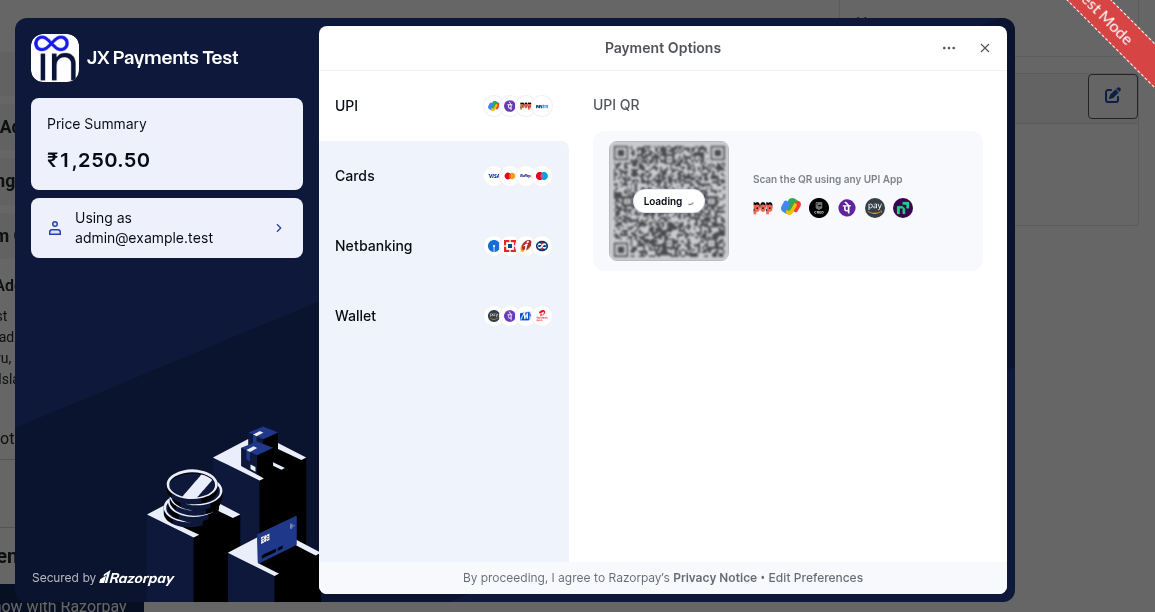
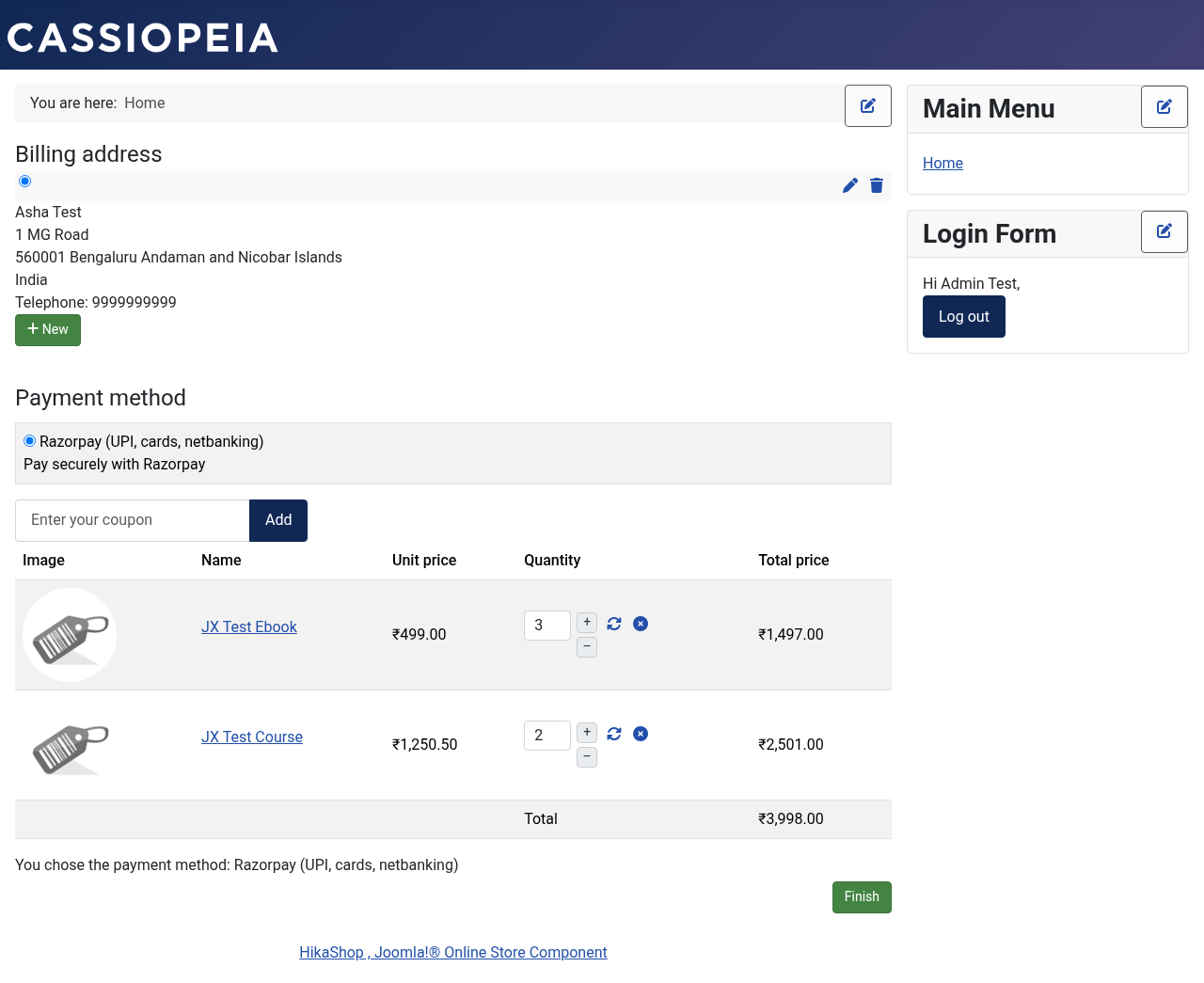
In HikaShop, Razorpay shows up in the Payment method block of the checkout under the name you gave the method (default "Razorpay"). HikaShop only lists it when the cart currency is in Accepted currencies. When the customer clicks Finish, HikaShop creates the order and opens its end page, where the plugin adds a Pay now with Razorpay button and a Cancel link. With Open Razorpay window automatically on Yes (the default), the Razorpay window opens by itself. Once the payment is verified, the order moves to your Verified status and the customer goes to HikaShop's after-checkout page. If verification fails, the customer sees an error and is sent to HikaShop's cancel-order link; the order switches to your Invalid status only when Razorpay reports the payment as failed.
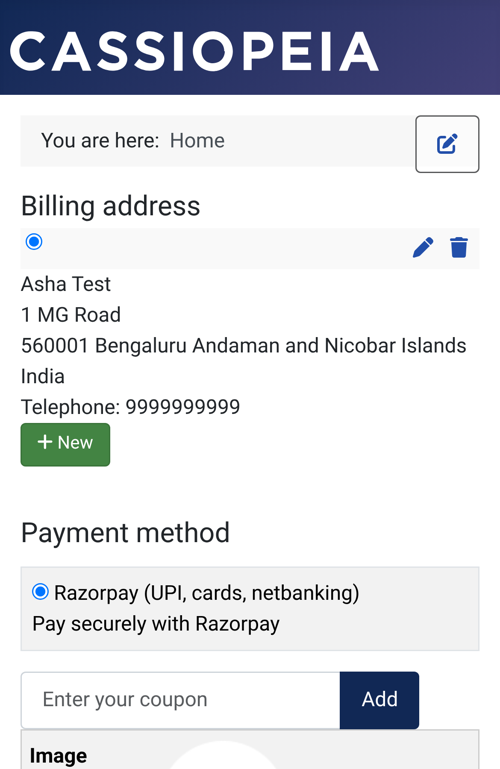
On a desktop the Razorpay window opens over your checkout. On a phone it redirects instead.
Desktop
- The customer chooses Razorpay (UPI, cards, netbanking) and places the order.
- The Razorpay window opens. If Open Razorpay window automatically is No, the customer clicks Pay now with Razorpay.
- The customer pays by UPI, card, netbanking, or wallet.
- Your server verifies the payment and the customer lands on the thank-you page. The order now has your paid status.
If the customer closes the window, they see a message that they can click Pay now to try again, or cancel.
Phones and tablets
On iPhone, iPad, and Android the plugin uses Razorpay redirect checkout instead of a popup. The customer pays on Razorpay and comes back through a signed return link. That avoids blank or blocked bank and 3-D Secure pages on iOS Safari, and the customer stays logged in.
UPI
UPI is often approved in another app such as Google Pay, PhonePe, Paytm, or BHIM. If the customer approves the payment and does not return to the browser, the payment.captured or order.paid webhook still confirms the order.
Messages the customer may see
- Razorpay does not accept payments in this currency on this store. The cart currency is not in Accepted currencies.
- We could not start the Razorpay payment. Razorpay refused to create the order, usually because of wrong keys or a network problem.
- We could not verify your payment. The browser confirmation failed the check. A webhook confirms the order if the payment was real. Razorpay refunds payments it never captures.
- Your payment is being confirmed by Razorpay. The payment is authorised but not yet captured. It updates automatically.