Configuration
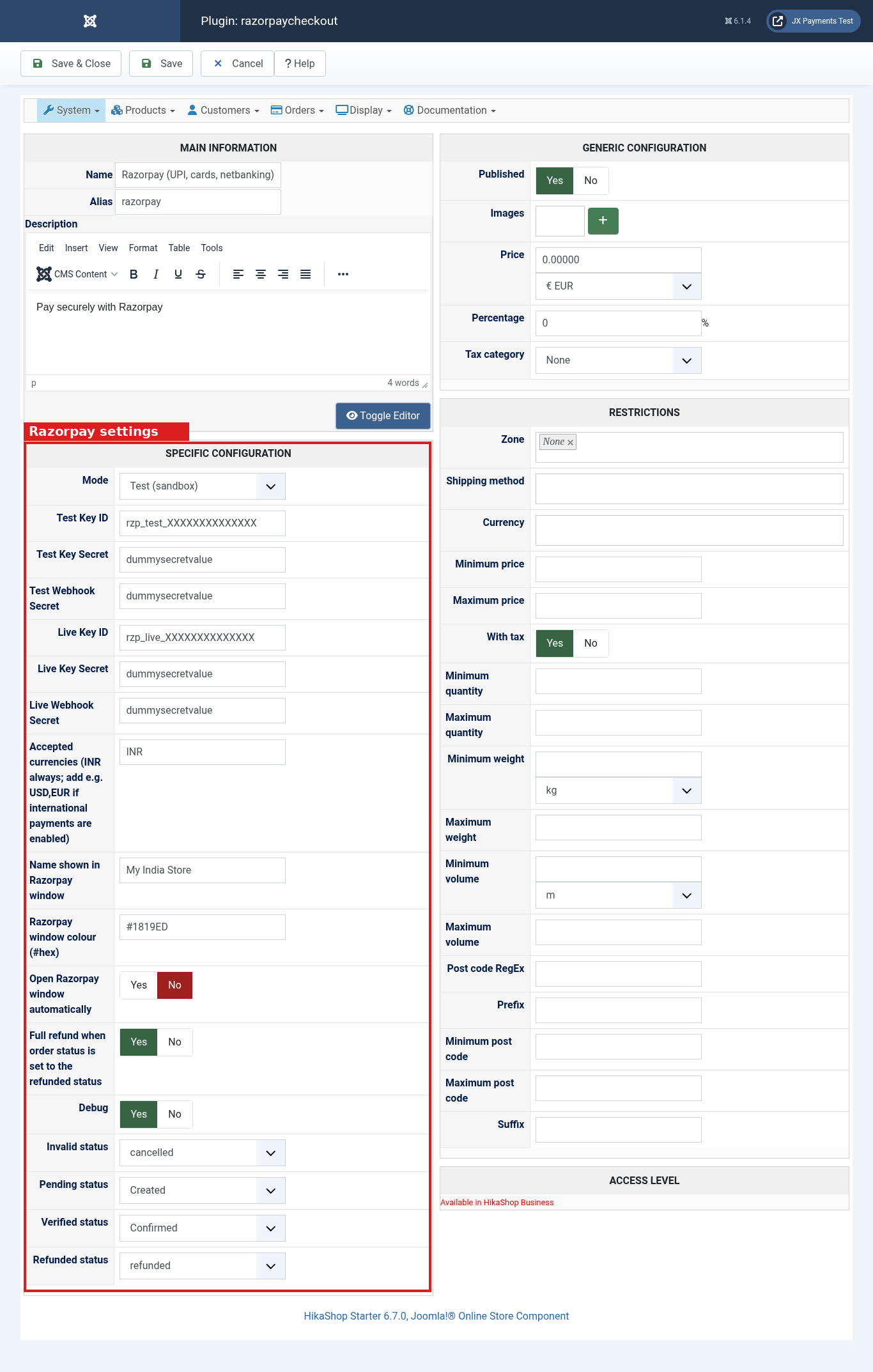
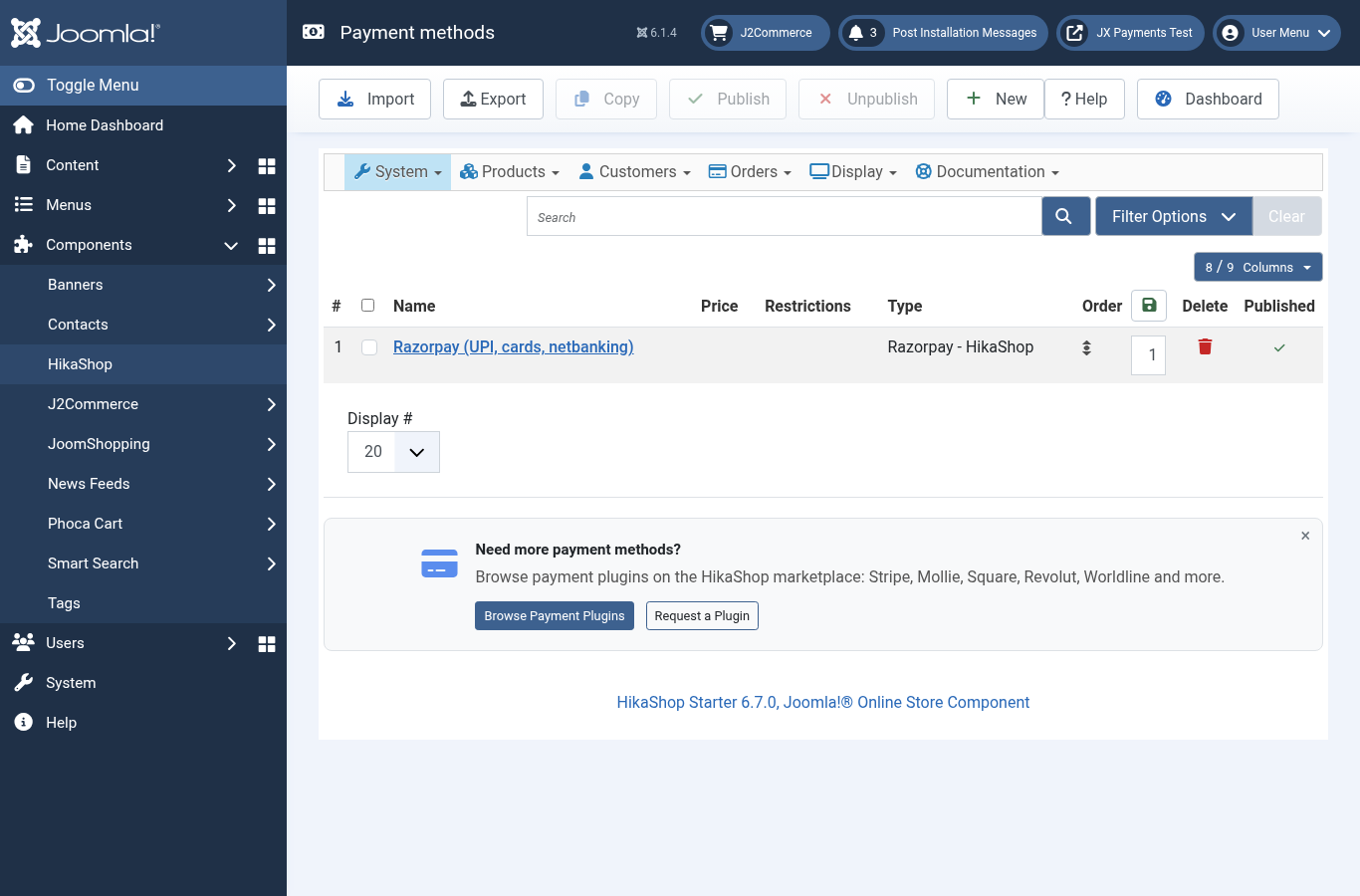
Razorpay - HikaShop is a HikaShop payment plugin (plg_hikashoppayment_razorpaycheckout, group hikashoppayment), so you set it up as a payment method inside HikaShop, not in Joomla's plugin manager. Go to Components > HikaShop > System > Payment methods, click New and pick Razorpay - HikaShop. A new method starts with the name "Razorpay", Mode set to Test (sandbox), INR as the only accepted currency and the Razorpay logo turned off. HikaShop renders the key fields as plain text boxes, so keep this screen out of shared screenshots. The form also asks for four HikaShop order statuses: Invalid status (default cancelled), Pending status (created), Verified status (confirmed) and Refunded status (refunded). Match them to your fulfillment workflow before you take a live payment.
Create or open the Razorpay payment method, then paste the keys for the mode you are using.
- Go to Components > HikaShop > System > Payment methods.
- Click New and choose Razorpay - HikaShop.
- Set the name customers see, an optional description, and Published to Yes. Use HikaShop restrictions for zone, currency, or minimum price only if you need them.
- Fill in the specific configuration and click Save & Close.
HikaShop shows key fields as plain text. Do not share screenshots of that screen.
Settings
| Setting | What it does |
|---|---|
| Mode | Test or Live. Only the keys for the selected mode are used. New methods start in Test. |
| Key ID and Key Secret | Test keys while Mode is Test (rzp_test_). Live keys while Mode is Live (rzp_live_). |
| Webhook secret | The secret you typed when creating the webhook for that mode. |
| Accepted currencies | Comma-separated codes. INR is always accepted. Add others, such as USD or EUR, only if International Payments is enabled on the Razorpay account. If the cart currency is not in the list, Razorpay is not offered. Default: INR. |
| Name shown in the Razorpay window | Your store name at the top of the payment window. Leave empty to use the Razorpay default. |
| Razorpay window colour | Accent colour as a hex code. Default: #1819ED. |
| Open Razorpay window automatically | Yes (default) opens the window when the payment page loads. No shows a Pay now with Razorpay button. |
| Show Razorpay logo | No by default. Yes shows the bundled Razorpay logo when the method has no image of its own. An image you set yourself always stays. |
| Full refund when the order status is set to refunded | Yes refunds the full remaining amount in Razorpay when you change the order to the refunded status. Default: No. |
| Debug | Yes writes extra detail to the log. Keep it off on a live store unless you are troubleshooting. |
| Invalid, pending, verified, refunded status | Defaults: cancelled, created, confirmed, and refunded. |
Use dummy keys in any screenshot. Never publish a screen that shows real secrets.