


Lightweight
A Sleek Lightbox, No jQuery
- A dark lightbox with next and previous, filmstrip and captions. Arrows, Escape, autoplay and swipe all work.
Image Gallery Module for Joomla
Features
Seven feature areas, one install package for Joomla 4, 5 and 6.
Lightweight
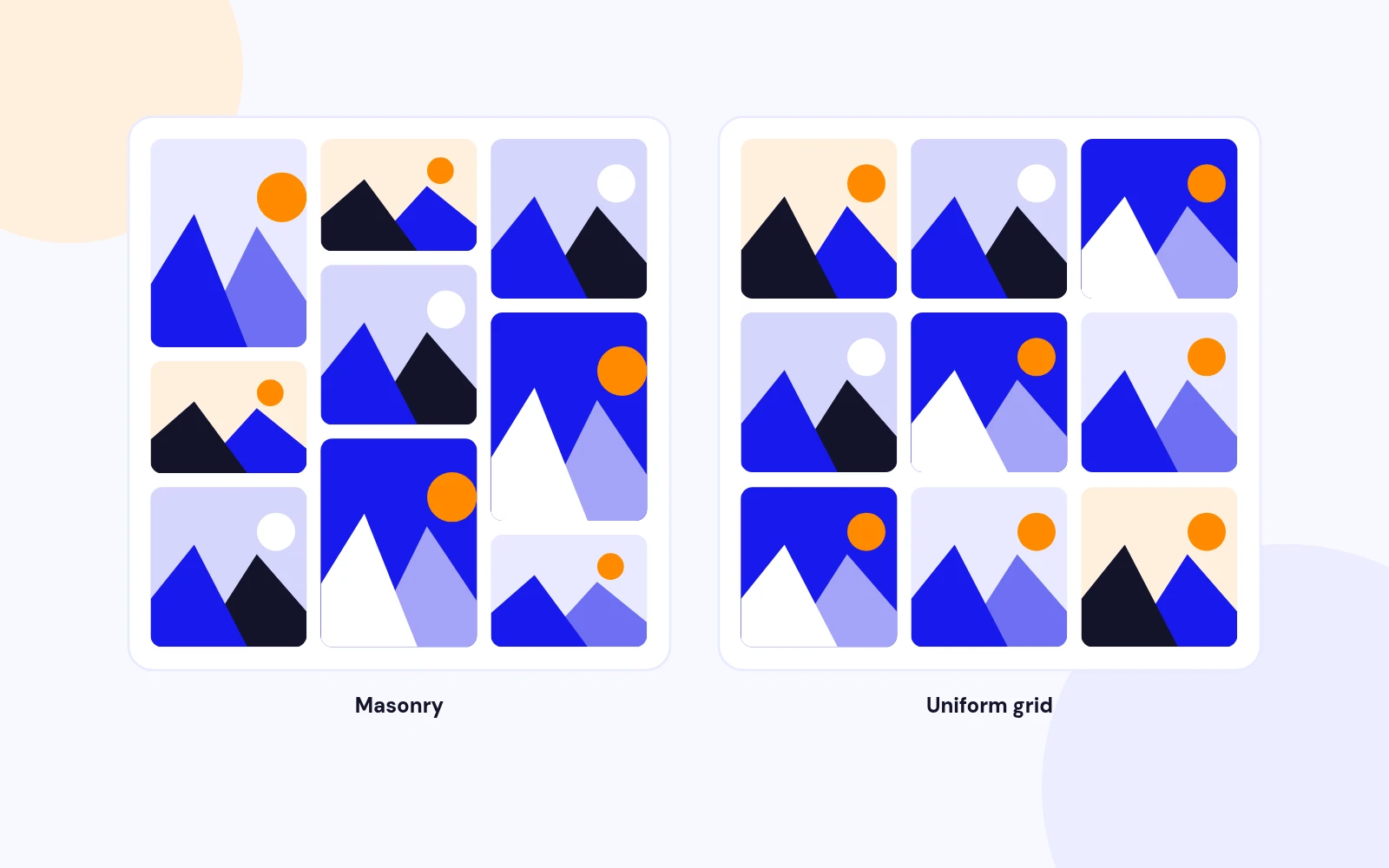
Pinterest-Style

Two Modes
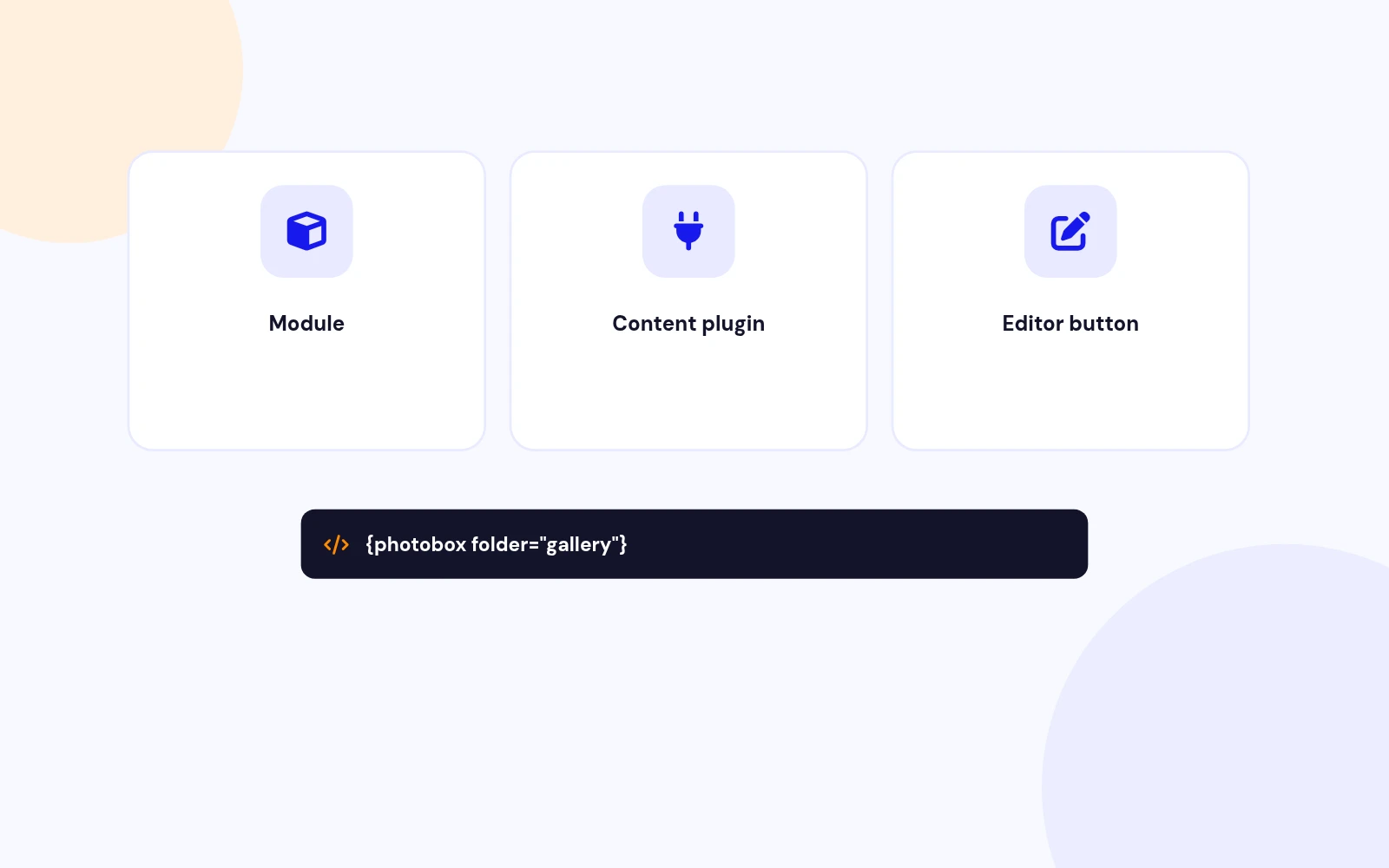
Use It Anywhere

Fast Loading
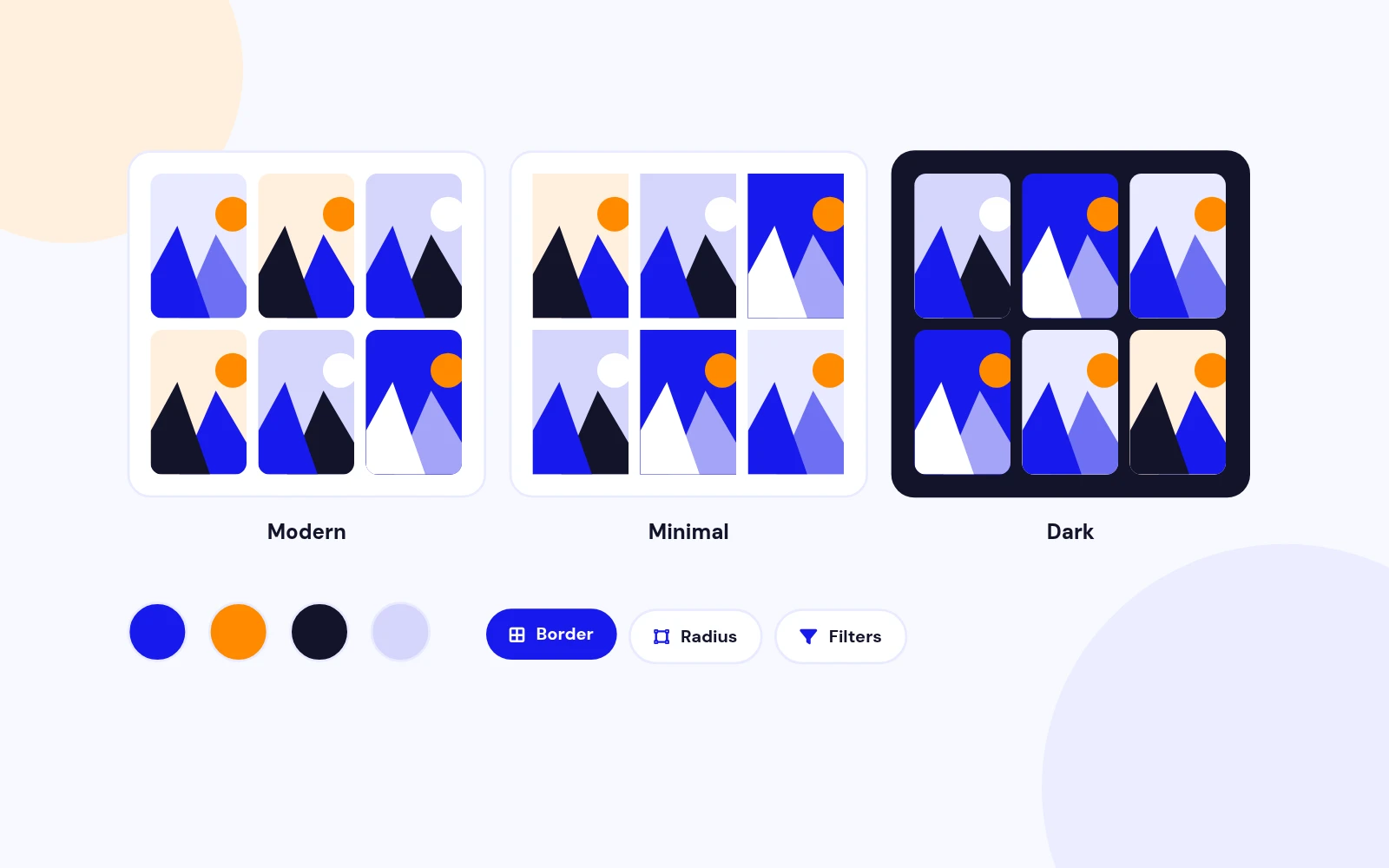
On-Brand
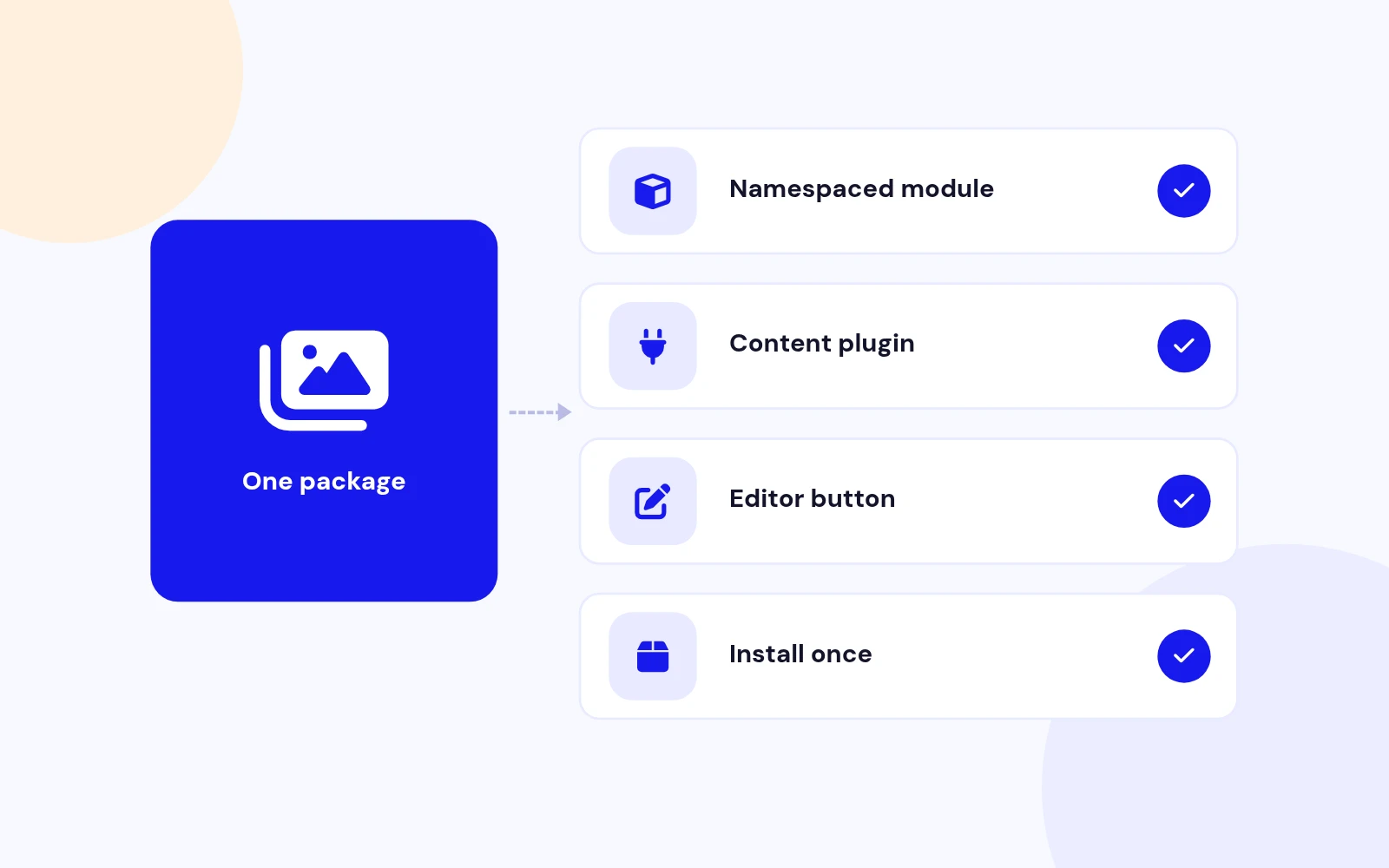
Future-Proof
Changelog
10 releases since version 1.2. Updates install from the Joomla admin with a valid licence.
Docs & setup
Written guides for installing and configuring Photobox, from first setup to the options that matter.
Pricing
Save more as you scale — longer access means a bigger discount.
30-day money-back guarantee
30-day money-back guarantee
30-day money-back guarantee
30-day money-back guarantee
Why buy here
All-access bundle
Get all 126 extensions, new releases, ongoing updates and full-time support. Bought one by one, a year of updates for every extension costs over $4,700.
Ideal for small projects and personal sites
$249/ 6 months
Save 91% · $2,900+ value
30-day money-back guarantee
Best for growing businesses and web agencies
$349/ 1 year
Save 92% · $4,700+ value
30-day money-back guarantee
For professional developers and multi-client agencies
$749/ one-time
Pay once · keep forever
30-day money-back guarantee
FAQ
Still unsure? Our support team is one ticket away.
A Joomla image gallery with a modern Photobox-style lightbox — module, content shortcode, and editor button in one package. Vanilla JS (no jQuery), masonry or uniform grid, filmstrip, captions, and WebP thumbs.
Joomla 4, 5, and 6. PHP 8.0+ required.
The install package (the .zip inside your download) installs the site module (Photobox), Content - Photobox, and Editor Button - Photobox.
Go to Content → Site Modules → New → Photobox. Set Images → Folder (e.g. images/photobox), adjust Look & Feel, assign a position and menu, then Publish.
Enable Content - Photobox, then use {photobox folder="images/photobox" columns="3" masonry="1" thumbwidth="720"} or the Photobox editor button.
Masonry (on by default) uses flowing columns so images keep their natural height. Turn it off under Look & Feel (or masonry="0") for a uniform CSS grid.
OnClick opens the lightbox when a thumb is clicked. OnLoad opens the first image automatically when the page loads.
In the lightbox under the large image (not as a hover overlay on the grid). Set captions via slides or auto-captions from filenames.
No. Version 2.0 uses vanilla JS/CSS with the jx-pbx prefix.
Under images/mod_photobox_cache/. Delete that folder to rebuild thumbs after changing sizes or toggling WebP.
More like this

Module + Plugin
Grid Based Image Gallery Extension for Joomla
v2.7.1 4,330 downloads
From $19

Module
Responsive Image Gallery Extension for Joomla
v2.3 3,919 downloads
From $9

Module + Plugin
Fullscreen Image Gallery Extension for Joomla
v2.5.1 3,719 downloads
From $9

