General Settings
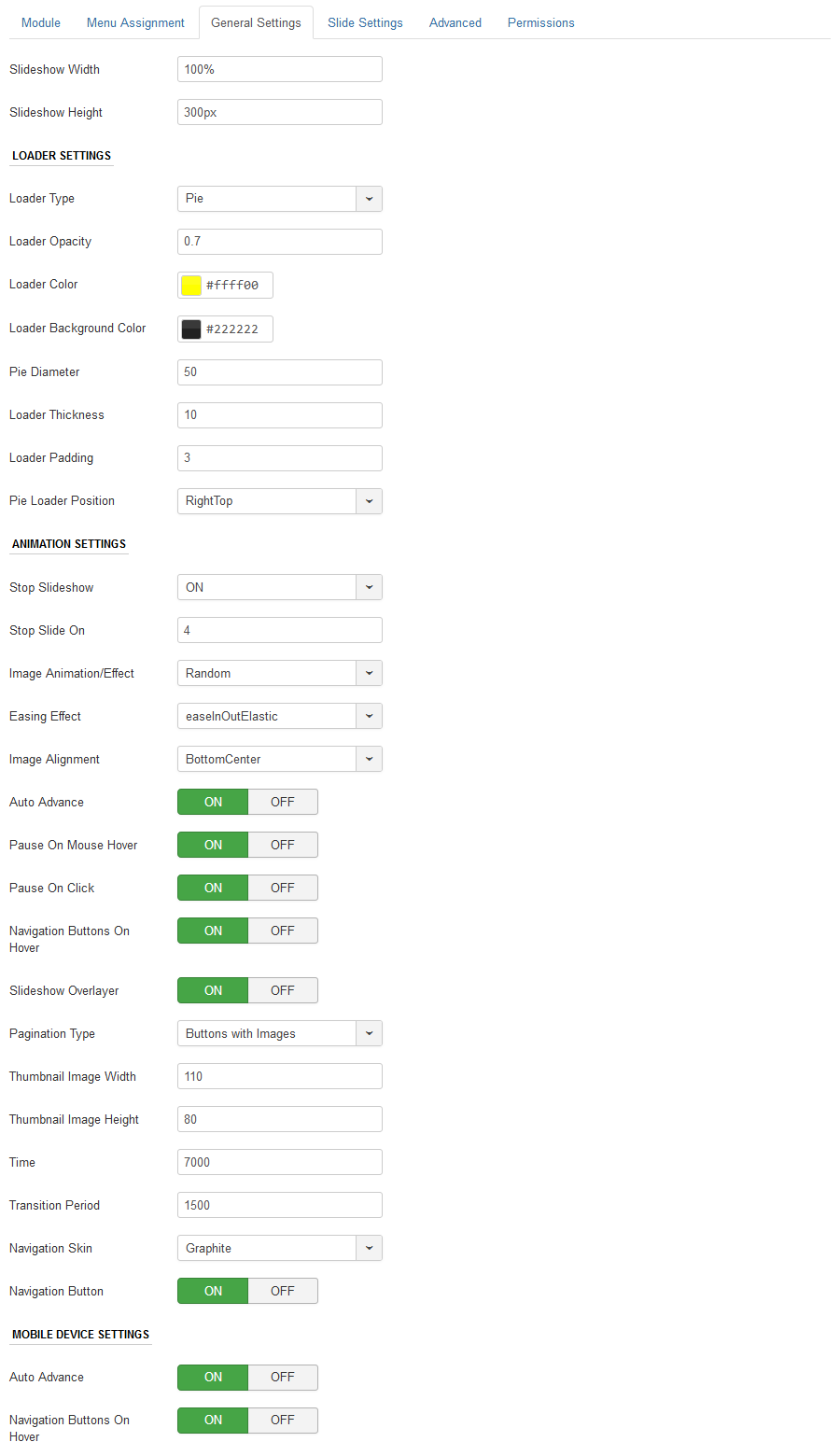
In general settings tab you can set the dimension, slideshow effects and other navigation settings.
- Slideshow Width : Set the width of the slideshow in pixels or percentage. For example you can set 100% or 1200px.
- Slideshow Height : Like the width you can set the height parameter pixels or percentage. If the width is set in percentage then use the height also in percentage.
Loader Settings
The loader of the slideshow appears on the slides. The loader can be completely customized using the following parameters.
- Loader Type : Set the loader type to None, Pie or Bar.
- Loader Opacity : Set the opacity of the loader. The range is 0.1 to 0.9.
- Loader Color : Select the loader color using the color picker to match your template.
- Loader Background Color : Select the background color of the loader.
- Pie Diameter : Set the diameter of the Pie loader. Ex: 50
- Loader Thickness : Set the thickness of the loader: Ex : 10
- Loader Padding: Padding around the loader can be set.
- Loader Position : Set the position of the loader on the slide.
Animation Settings
Camera Slideshow has more than 30 animation and easing effect.
- Stop Slideshow : Set it to ON if you want the slideshow on stop on a particular slide.
- Stop Slide on : Set the slide number in which you would like to stop the slideshow. Ex: 3, the slideshow if set to Auto Slide will automatically stop on slide number 3.
- Image Animation Effect : Choose the effect you would like the images to appear.
- Easing Effect : Easing adds more visual effects to the slideshow.
- Image Alignment : Set the position of the slideshow images inside the slide.
- Auto Advance : Set to ON if you would like the slideshow to change automatically.
- Pause on Mouseover: Set to ON if you want to pause the slideshow on hovering the slide.
- Pause on Click : Set to ON if you want to pause the slideshow on clicking the slide.
- Navigation Buttons on Hover : The Navigation Buttons/ Arrows appear when you hover on the slide. Set it to OFF if you don't want the navigation.
- Slideshow Overlayer : Select whether to put a layer on the images to prevent the users grab images simply by clicking the right button of their mouse.
- Pagination Type : Choose the pagination type for the slideshow. Ex : None, Buttons, Buttons with Images, Image Pagination.
- Thumbnail Image Width/Height : If the pagination type is set to Button with Images or Image Pagination then you have to set the width and height of the image thumb. Ex : 110.
- Time : It defines the milliseconds between the end of the sliding effect and the start of the next one.
-
: Length of the sliding effect in milliseconds.
- Navigation Skin : Select the navigation color skin from a list of 15+ skins to match your template.
- Navigation Button : Option to show or hide the slideshow navigation. Set ON to hide.
Mobile Device Settings
The slideshow has option to control few features for mobile devices.
- Auto Advance : Set to ON if you would like the slideshow to change automatically for mobile devices.
- Navigation Buttons On Hover : The Navigation Buttons/ Arrows appear when you hover on the slide. Set it to OFF if you don't want the navigation for mobile devices.