Slide Settings
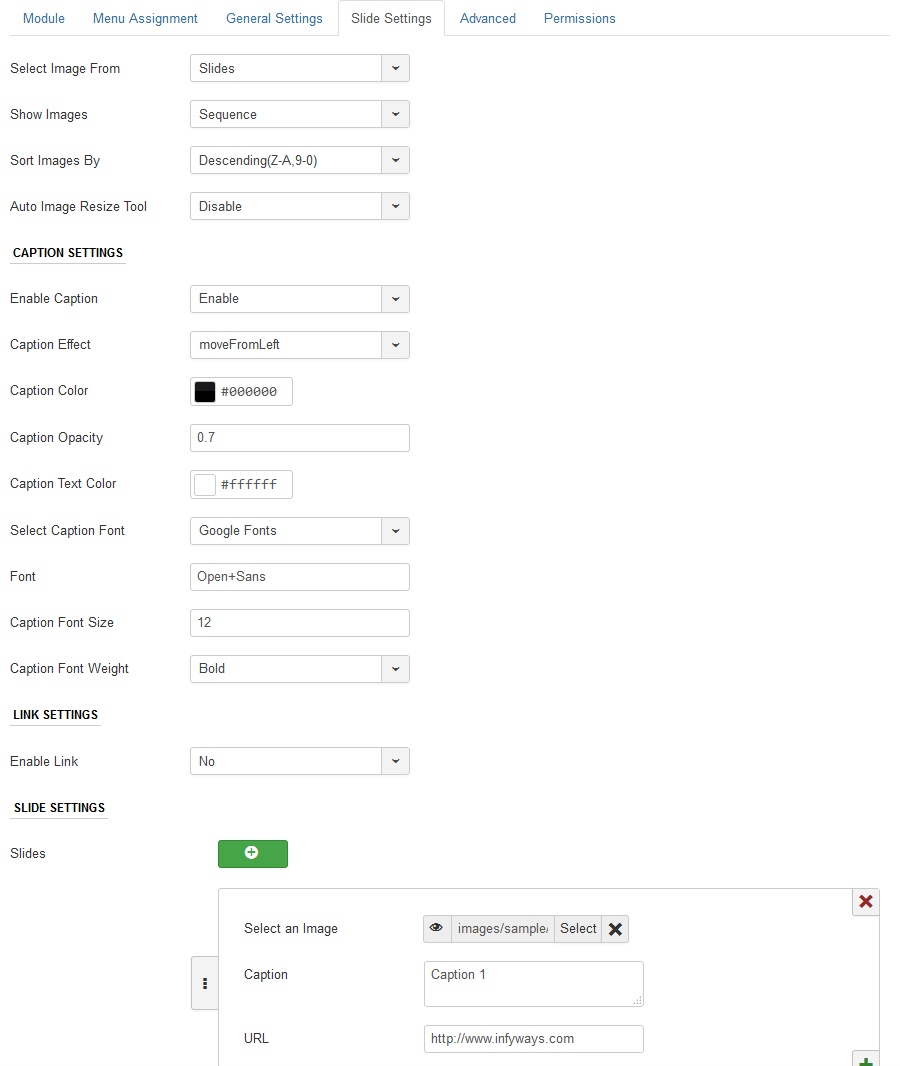
In Slide Settings you can either fetch images from folder or add images individually into the module and set the caption and link the slideshow to an URL.
- Select Images From : Option to fetch images from folder or set each slide in the module.
- Image Folder Path : Set the folder from which you would like to fetch the images of the slideshow. Ex : images/slideshow/
- Show Images : Option to show the slideshow of the images in sequential or randomly.
- Sort Images By : Sorting of slideshow images can be done ascending or descending order of the filename.
- Auto Resize Tool : We recommend to use only when the images uploaded into the media manager are not of the desired size.
- Resize Image By : If the resize tool is set to enabled, you can find this parameter which can help you resize the images by height, width or both. Set the values to 900 or 1000 without using px or percentage in the Image Height and Image Width parameters.
Caption Settings
- Enable Caption : Option to enable or disable the caption which appears on the slideshow.
- Enable Caption : Select the effect of the appearance of the caption on the slide.
- Caption Background Color : Select the color of the caption background using the color picker.
- Caption Opacity : Set the opacity of the caption bar. Range : 0.1 to 0.9
- Caption Text Color : Select the caption color using the color picker.
- Caption Font : You can use your own font, Google Fonts or the template default font.
- Font : If you want to use Google Fonts then go to https://fonts.google.com/, select a font name and add it to the field. For example you want to use Open Sans font the just mention Open+Sans in the field.
- Caption Font Size : This field accept values in pixels only. Ex : 14
- Caption Font Weight : Set the caption font thickness to Normal or Bold.
Link Settings
- Enable Link : Set it to Disable if you don't want to link the slides.
- Open In : You can set the links to open in same or new tab.
Slide Settings
To add a new slide, click on the + button. For each slide you have to fill 3 different parameters.
- Select an Image : Select the image from the media manager.
- Caption : Add Caption to the slideshow. You can add HTML tags into it.
- URL : Set the URL for the slide
You can add/remove/edit multiple number of slides.