Configuration
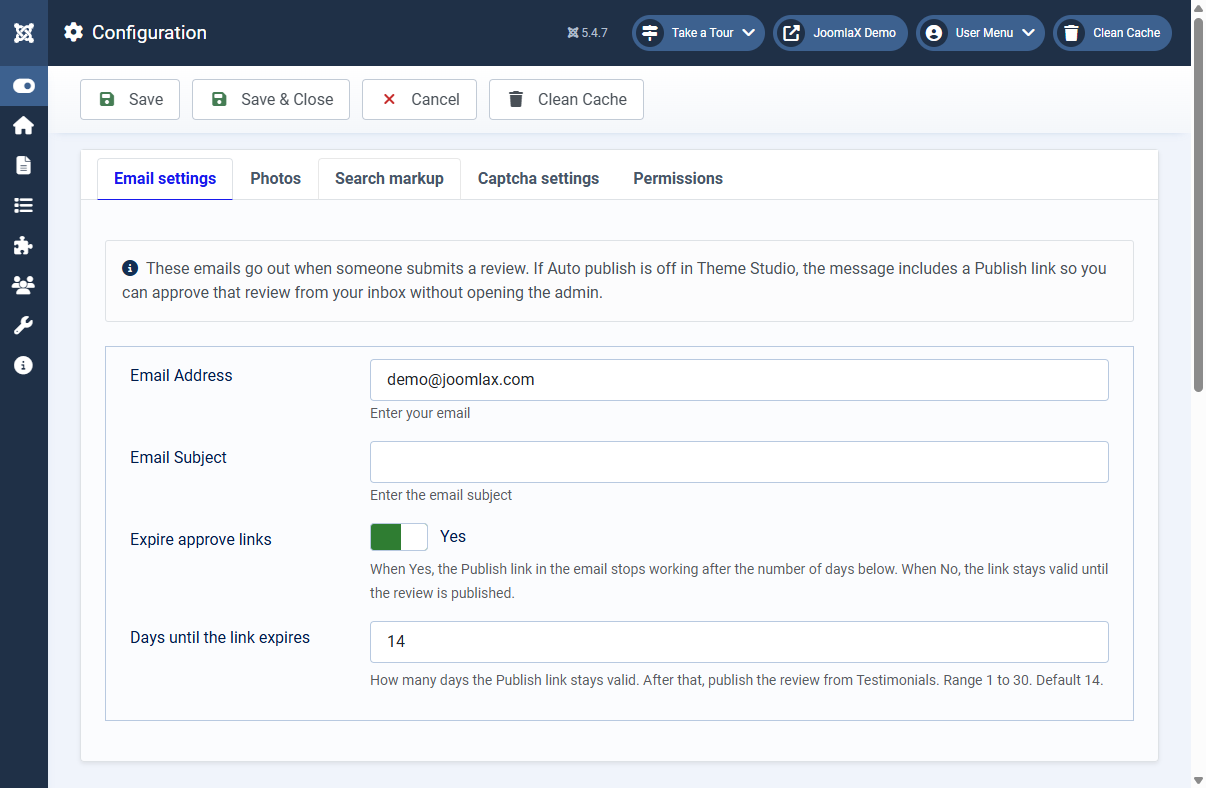
Open Components > Testimonial Fader > Configuration (gear icon on any Testimonial Fader screen).
Email settings
- Email Address: where new submission alerts are sent
- Email Subject: subject line for those alerts
- Expire approve links: when Yes, the one-click publish link in email stops working after X days
Photos
- Thumbnail size: pixel width/height for stored photos
- Image format: keep original, or convert to WebP or AVIF
- Quality: compression level for converted images
Search markup (schema)
- Organisation name and URL: defaults for JSON-LD Review data
Captcha settings
- Three captcha options: built-in image captcha, Google reCAPTCHA v2 (checkbox), or Google reCAPTCHA v3 (invisible)
- Built-in captcha: no Google account needed. Customize code length, character set, image size, corner radius, background, text, noise, and line colours. Live preview in admin shows exactly how it will look.
- Google reCAPTCHA: paste site key and secret key pairs that match v2 or v3. An inline setup guide walks you through Google registration.
- Same captcha stack on the component form, Ajax form module, and article shortcodes
Permissions
Use the Permissions tab if non-Super Users should manage testimonials.
Student tip
Set the notification email first, then submit a test review on the front end to confirm mail arrives before you launch.