License Key: Add your license key to enable automatic updates. You can find your key in the Downloads Section of our store.
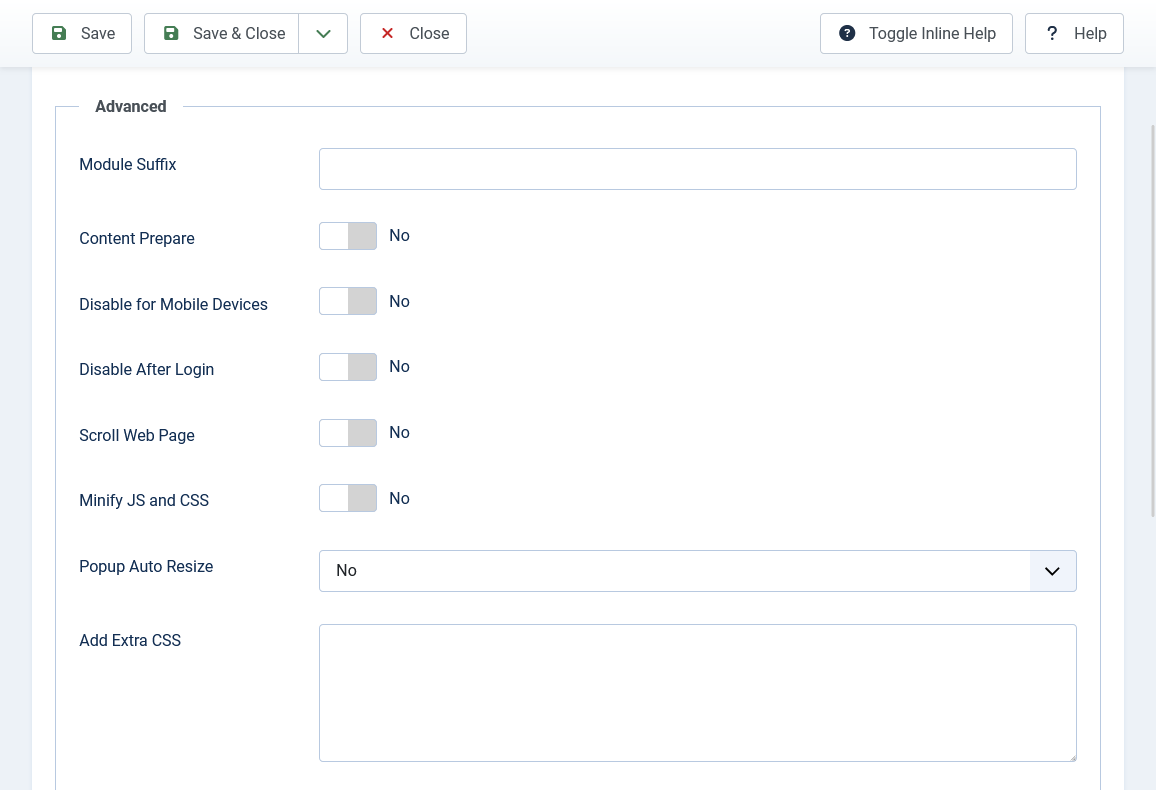
Content Prepare: Enable this to allow content plugins to work inside the popup.
Trigger Scroll Amount: Set how far down the page (in pixels) a user must scroll before the popup appears. Only applies when using the "OnPage Scroll" trigger.
Trigger Scroll Amount: Set how far down the page (in pixels) a user must scroll before the popup appears. Only applies when using the "OnPage Scroll" trigger.
Inactivity Time: Set the duration (in seconds) that a user must remain inactive before triggering the popup. Minimum: 1 second. Only applies when using the "Time on Page (Inactivity)" trigger.
Visibility Element: Enter a CSS selector for the element that should become visible to trigger the popup. Only applies when using the "Element Visibility" trigger.
Page Views Required: Set the number of page views required before the popup appears. Only applies when using the "After X Page Views" trigger.
Disable for Mobile Devices: Set to Yes to prevent the popup from appearing on smartphones and tablets.
Disable after Login: Set to Yes to hide the popup for logged-in users. This is useful when showing a login form in your popup.
Scroll Webpage: Set to Yes to allow users to scroll the main page while the popup is open. Set to No to lock the page until the popup is closed.
Minify JS and CSS: Enable this to load compressed versions of JavaScript and CSS files, improving page load times.
Add Extra CSS: Add custom CSS code to modify the appearance of your popup beyond the standard options.