Google Analytics
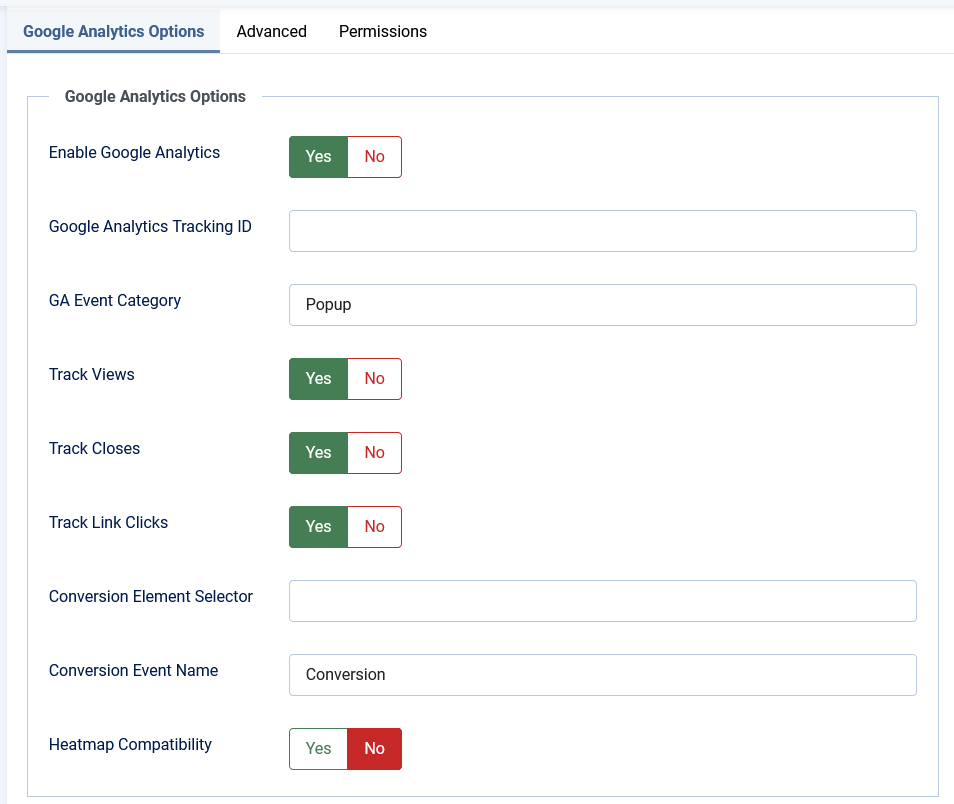
Track Popup Performance with Google Analytics
The Google Analytics integration lets you track how visitors interact with your popups. This helps you understand which popups are effective and which might need improvement.
What You Can Track
- Views: How many times your popup was displayed
- Closes: How many times visitors closed your popup
- Clicks: How many times visitors clicked links inside your popup
- Conversions: How many times visitors completed a desired action (like submitting a form)
Configuration Options
- Enable Google Analytics: Set to Yes to activate tracking.
- Google Analytics Tracking ID: Enter your GA tracking code (starts with UA- or G-) if you want to use a specific property. Leave empty to use your site's existing Google Analytics.
- GA Event Category: The category name that will appear in your Google Analytics reports (default: "Popup").
- Track Views: Set to Yes to record each time your popup is displayed.
- Track Closes: Set to Yes to record each time your popup is closed.
- Track Link Clicks: Set to Yes to record clicks on links inside your popup.
- Conversion Element Selector: Enter a CSS selector that identifies conversion elements. For example:
- #submitButton - Tracks clicks on an element with ID "submitButton"
- .signup-button - Tracks clicks on elements with class "signup-button"
- form.contact input[type=submit] - Tracks form submissions
- Conversion Event Name: The name that will appear in Google Analytics for conversion events (default: "Conversion").
Heatmap Integration
If you use heatmap tools to visualize user interactions, you can make them work properly with your popups:
- Heatmap Compatibility: Set to Yes to enable special code that helps heatmap tools track interactions inside popups.
- Heatmap Provider: Select your heatmap service for optimal compatibility:
- Generic: Works with most heatmap tools
- Hotjar: Optimized for Hotjar
- Crazy Egg: Optimized for Crazy Egg
- Mouseflow: Optimized for Mouseflow
Viewing Your Analytics Data
After implementing Google Analytics tracking, you can view the data in your Google Analytics dashboard:
- Log in to your Google Analytics account
- Navigate to Behavior → Events (in Universal Analytics) or Events (in GA4)
- Look for events with the category name you specified (default: "Popup")
- You'll see separate listings for views, closes, clicks, and conversions