Referrer Targeting
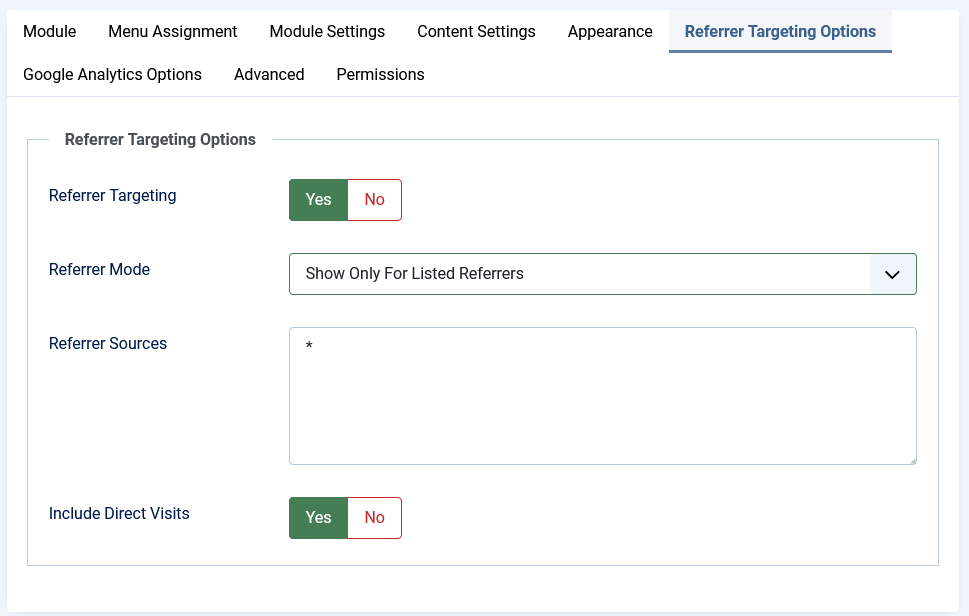
What is Referrer Targeting?
Referrer targeting allows you to show or hide your popup based on where your visitors are coming from. For example, you can:
- Show a special offer only to visitors coming from Google
- Display different popups for visitors from social media versus search engines
- Hide your popup for visitors coming from specific websites
- Control whether direct visitors (those who type your URL directly) see your popup
Configuration Options
- Referrer Targeting: Set to Yes to enable this feature.
- Referrer Mode: Choose one of two options:
- Show Only For Listed Referrers: Popup will appear ONLY for visitors coming from the sites you list
- Hide For Listed Referrers: Popup will appear for everyone EXCEPT visitors from the sites you list
- Referrer Sources: Enter the domain names that you want to target, one per line. For example:
google.com
facebook.com
twitter.com
- Wildcard Matching: Use asterisks (*) as wildcards to match multiple domains. For example:
- *.google.com - Matches any Google subdomain (www.google.com, images.google.com, etc.)
- *facebook* - Matches any URL containing "facebook"
- Include Direct Visits: Control whether your popup appears for direct visitors (people who typed your URL directly or used a bookmark).
- Set to Yes to show your popup to direct visitors
- Set to No to hide your popup from direct visitors
Testing Your Referrer Targeting
To test if your referrer settings are working correctly:
- Open an incognito/private browsing window (to avoid cookie interference)
- Visit a website you've added to your referrer list
- From that site, click a link to your website
- Check if the popup behavior matches your expectations
If you're having trouble, you can use browser developer tools to verify what referrer information is being sent. In Chrome, right-click → Inspect → Network tab → refresh the page → look for the "Referer" header in the request details.