Content Settings
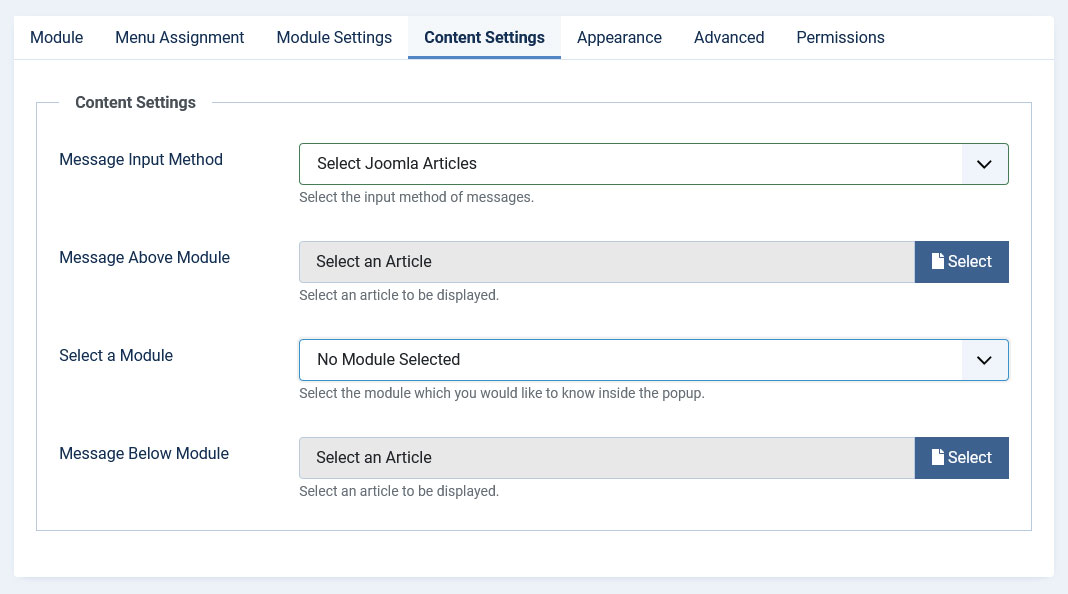
What Can You Put Inside Your Popup?
- HTML or Plain Text - You can add any text content using either the Joomla editor or by selecting existing Joomla articles.
- Images - Include a single image from your media library, or combine images with text using the editor.
- Modules - Display any Joomla module inside your popup (like contact forms, login forms, etc.)
- Media URLs - Embed external content using media URLs (YouTube, Vimeo, Google Maps, etc.)
- Standalone Image - Display a single image as the popup content with optional link functionality.
Content Configuration Options
- Message Input Method: Choose between four options:
- Editor: Use the built-in Joomla editor to create HTML content with Message Above and Message Below fields.
- Select Joomla Articles: Select existing Joomla articles to display in the popup (Message Above Article and Message Below Article).
- Media URL: Embed videos or maps using URLs. When using this option, Message Above, Module ID, and Message Below settings are not applied.
- Image: Display a single image as the popup content with optional link and target settings.
- Module ID: Enter the ID number of any Joomla module you want to display inside the popup (available when using Editor or Article input methods).
- Message Above: Content to display above the module (when using Editor input method).
- Message Below: Content to display below the module (when using Editor input method).
- Message Above Article: Select a Joomla article to display above the module (when using Article input method).
- Message Below Article: Select a Joomla article to display below the module (when using Article input method).
- Media URL: Enter the URL for embedding videos or maps (e.g., YouTube, Vimeo, Google Maps).
- Popup Image: Select an image from your media library to display as the popup content (when using Image input method).
- Image Link: Set an optional URL that the popup image will link to (when using Image input method).
- Image Link Target: Choose whether the image link opens in the same tab or a new tab (when using Image input method).
Supported Media Types
The Media URL field supports various platforms including:
- YouTube
Example formats:
http://www.youtube.com/watch?v=opj24KnzrWo
http://www.youtube.com/embed/opj24KnzrWo
http://youtu.be/opj24KnzrWo - Vimeo
Example formats:
http://vimeo.com/40648169
http://player.vimeo.com/video/45074303 - Metacafe
Example format:
http://www.metacafe.com/watch/7635964/ - Dailymotion
Example format:
http://www.dailymotion.com/video/xoytqh_example-video_people - Instagram
Example format:
http://instagram.com/p/IejkuUGxQn/ - Google Maps
Example format:
http://maps.google.com/maps?q=Eiffel+Tower,+Avenue+Gustave+Eiffel,+Paris,+France&t=h&z=17