Slides
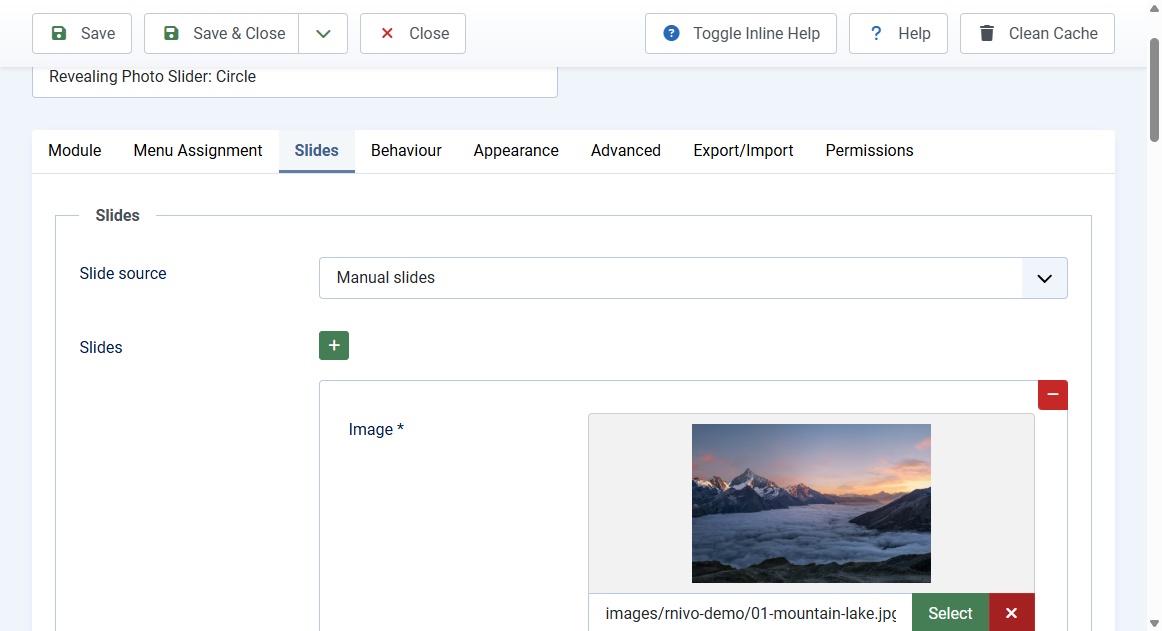
Open the module and click the Slides tab. This is where the images come from.
Manual slides
Default source. Each row can have:
- Image (required): Media Manager file or an http(s) image URL
- Alternative text: falls back to the title when empty
- Tag, Title, Text: plain text caption. Empty fields leave no gap
- Link: optional URL that makes the title clickable.
javascript:anddata:links are rejected - Open link in: Same window or New window. New window adds
rel="noopener noreferrer"
Use the plus, minus, and move buttons to add, remove, and reorder rows. Rows with no image are skipped.
Image folder
- Set Slide source to Image folder
- Pick a folder under
images/ - JPEG, PNG, GIF, WebP, and AVIF files load in file name order
- The file name becomes the alternative text. Folder slides have no captions
Article intro images
- Set Slide source to Article intro images
- Pick one or more categories, the number of articles (1 to 30), ordering, direction, and featured filter
- Each slide uses the intro image, category as tag, article title with a link, and a short plain introtext
- Articles with no intro image are skipped
- Exclude current article hides the article being viewed
Empty source
If no slides remain, the module renders nothing. You will not see an empty frame or a JavaScript error.