Quick start
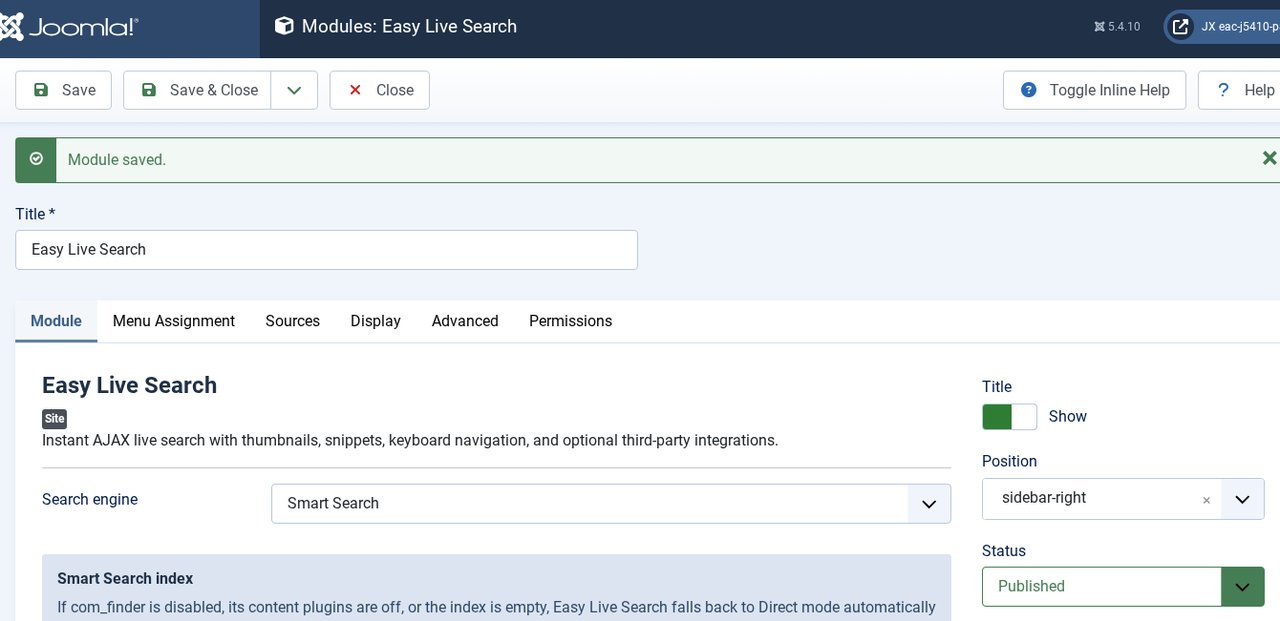
- Go to Content → Site Modules and click New.
- Choose Easy Live Search.
- Give the module a title. To hide the title above the box, set Show Title to No. The search field already has its own accessible label (“Search”).
- Choose a Position that your template actually displays, such as a header, menu, or search position, and set Status to Published.
- On the Menu Assignment tab, assign the module to the pages where the search box should appear.
- Click Save & Close.
- Open the front end and type at least 3 characters. You should see matching published articles in the dropdown.
A fresh install searches articles straight away. You do not have to open and save the module settings first. Search engine defaults to Smart Search. If the index is not ready, Direct runs automatically and still searches articles. If Easy Directory or Easy Events Calendar is installed, those sources are also on by default and will be included. Shop sources stay off until you turn them on.
This module does not automatically replace your template’s built-in search module. Unpublish that module if you want only Easy Live Search to appear.
Confirm the plugin is enabled: System → Manage → Plugins, then search for Ajax - Easy Live Search.
In the module form, the tabs are Module, Menu Assignment, Sources, Display, Advanced, and Permissions. Search engine and the other Search behavior settings are on the Module tab. There is no separate Search behavior tab.