Sources
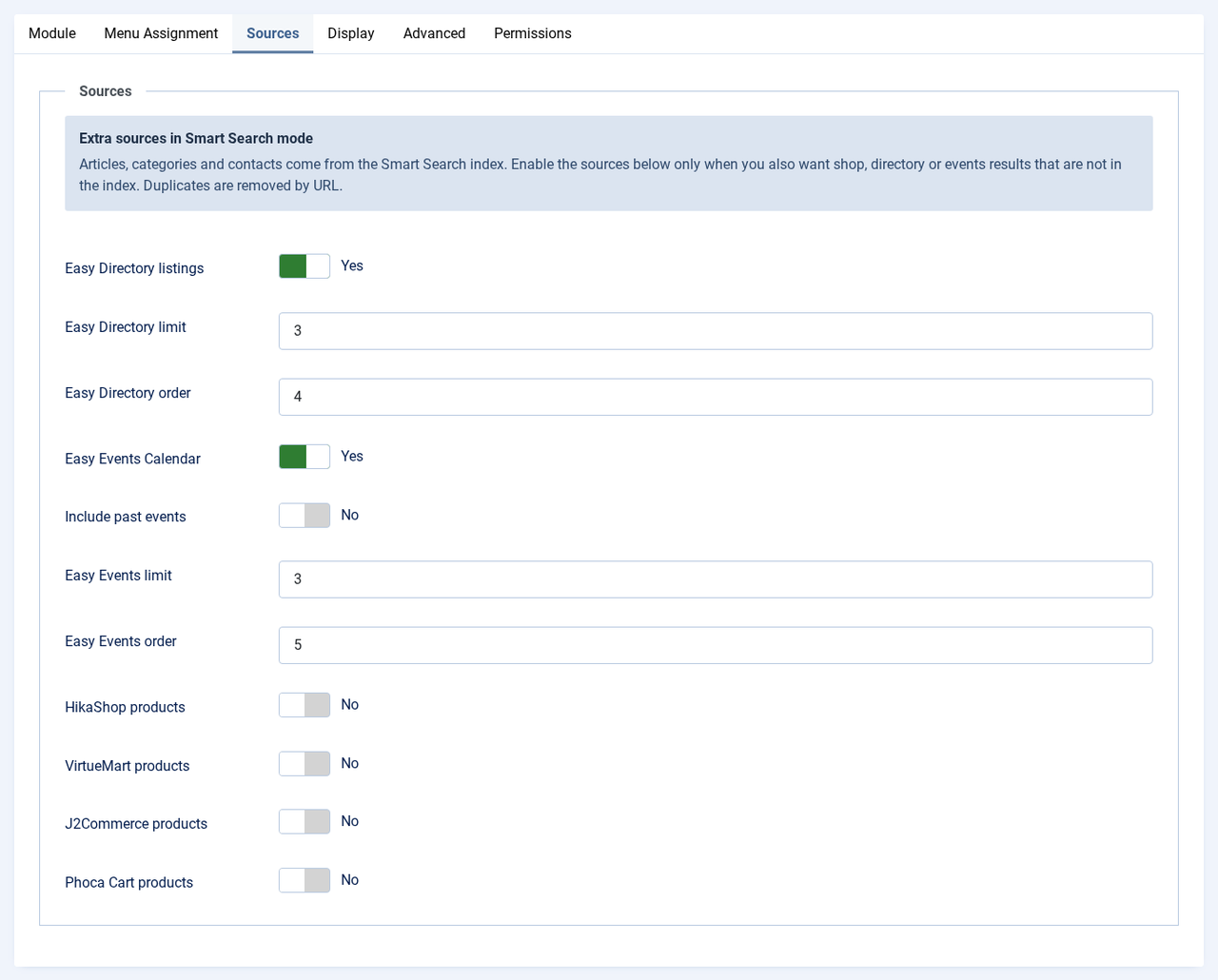
On the Sources tab, turn each extra source on or off and set its limit and order.
When Search engine is Smart Search, a note labeled Extra sources in Smart Search mode reminds you that articles, categories, and contacts come from the index. The switches for those three sources are hidden. The switches below them are only for shop, directory, or events extras.
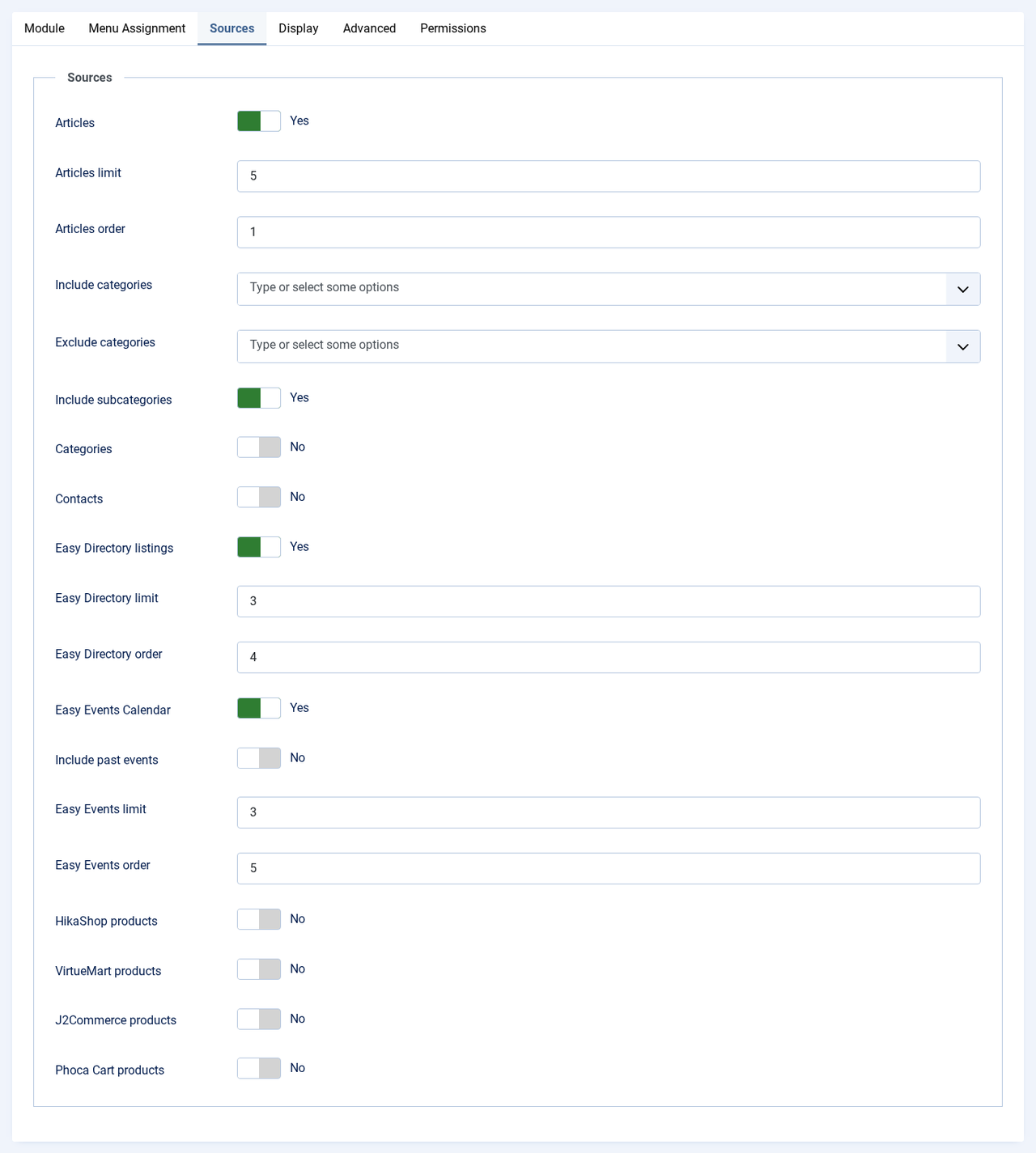
When Search engine is Direct, the Articles, Categories, and Contacts switches are shown, and you choose each source yourself. Direct mode includes only the sources listed below; it does not add a separate source for tags, custom fields, users, or news feeds.
Limit is how many results that source may add, up to the space still available under Maximum results.
Order is a number from 1 to 99. Lower numbers appear first in the dropdown when several sources return results. It does not change how items inside that source are sorted. In Direct mode, each source uses its own sort (for example, articles by start publishing date, events by start date); some product sources use the database’s default order. In Smart Search mode, index results are listed first and use Smart Search’s own ranking; extras are then added in this order, and any extra whose URL already appeared is skipped.
Optional shop, directory, and events sources are used only when the related extension is installed. Otherwise they are skipped silently.
Each source description below lists the fields that are matched. Article aliases, metadata, and SKUs or product codes are included only when they appear in those fields.
Articles
| Setting | Default | Shown when |
|---|---|---|
| Articles | Yes | Direct mode |
| Articles limit | 5 | Direct mode, and Articles is Yes |
| Articles order | 1 | Direct mode, and Articles is Yes |
| Include categories | (empty — search all categories) | Direct mode, and Articles is Yes |
| Exclude categories | (empty) | Direct mode, and Articles is Yes |
| Include subcategories | Yes | Direct mode, and Articles is Yes |
Always available. In Smart Search mode, articles come from the index, so this switch is hidden.
In Direct mode, this source uses Joomla’s standard article tables. It searches published articles whose publish dates include now, in categories the visitor is allowed to see. The article and its category must both be published and in the visitor’s access levels. Results follow the current site language, plus language-neutral articles.
- Title only: article title.
- Title and text: title, intro text, and full text.
Results are sorted by the article’s start publishing date, newest first. The snippet comes from the intro text, or the full text if the intro is empty, shortened to about 140 characters. The thumbnail is the intro image, or the full article image, or the first image in the article text.
Include categories and Exclude categories apply to the Articles source only. Leave include empty to search all categories. If a category is both included and excluded, it is excluded. When Include subcategories is Yes (the default), those lists also apply to nested child categories. Set it to No if you want only the categories you picked, not their children.
Categories
| Setting | Default | Shown when |
|---|---|---|
| Categories | No | Direct mode |
| Categories limit | 3 | Direct mode, and Categories is Yes |
| Categories order | 2 | Direct mode, and Categories is Yes |
This source searches published Joomla article categories (com_content) only, below the root category. Contact categories and other component categories are not searched. In Smart Search mode, categories come from the index, so this switch is hidden.
In Direct mode, the category must be published, in the visitor’s access levels, and in the current language.
- Title only: category title.
- Title and text: title and description.
Results follow the category tree order. The snippet is the category description. The thumbnail is the category image, or the first image in the description. Each result links to that category page.
Contacts
| Setting | Default | Shown when |
|---|---|---|
| Contacts | No | Direct mode |
| Contacts limit | 3 | Direct mode, and Contacts is Yes |
| Contacts order | 3 | Direct mode, and Contacts is Yes |
Needs Contacts (com_contact) installed and enabled. In Smart Search mode, contacts come from the index, so this switch is hidden.
In Direct mode, it searches published contacts whose publish dates include now, and whose contact and category are both published and in the visitor’s access levels, in the current language.
- Title only: contact name.
- Title and text: name, the miscellaneous information field, and the contact’s position.
The snippet comes from the miscellaneous information field. The thumbnail is the contact image. Email, phone, and address fields are not searched.
Easy Directory listings
| Setting | Default | Shown when |
|---|---|---|
| Easy Directory listings | Yes | Always (when you want this extra source) |
| Easy Directory limit | 3 | Easy Directory listings is Yes |
| Easy Directory order | 4 | Easy Directory listings is Yes |
Needs Easy Directory (com_easydirectory) installed and enabled. If it is not installed, this source is skipped even when the switch is on. It is also available as an extra source in Smart Search mode.
It searches published listings whose publish dates include now, in the visitor’s access levels and the current language. The listing category must also be published and in the visitor’s access levels.
- Title only: listing title.
- Title and text: title, intro text, and description.
The snippet comes from the intro text, or the description if the intro is empty. The thumbnail is the listing image, or the logo if there is no image. Each result links to the listing page.
Easy Events Calendar
| Setting | Default | Shown when |
|---|---|---|
| Easy Events Calendar | Yes | Always (when you want this extra source) |
| Include past events | No | Easy Events Calendar is Yes |
| Easy Events limit | 3 | Easy Events Calendar is Yes |
| Easy Events order | 5 | Easy Events Calendar is Yes |
Needs Easy Events Calendar (com_easyeventscalendar) installed and enabled. If it is not installed, this source is skipped even when the switch is on. It is also available as an extra source in Smart Search mode.
It searches published events in the visitor’s access levels and the current language. The event category must also be published and in the visitor’s access levels.
When Include past events is No (the default), only upcoming or ongoing events are shown: the end date is still in the future, or, if there is no end date, the start date is still upcoming. Set it to Yes if you also want past events.
- Title only: event title.
- Title and text: title, intro text, description, and venue.
Results are sorted by start date and time, newest first. The snippet comes from the intro text, or the description if the intro is empty. The thumbnail is the intro image, or the event image. Each result links to the event page.
HikaShop products
| Setting | Default | Shown when |
|---|---|---|
| HikaShop products | No | Always (when you want this extra source) |
| HikaShop limit | 3 | HikaShop products is Yes |
| HikaShop order | 6 | HikaShop products is Yes |
Needs HikaShop (com_hikashop) installed and enabled. Stays off until you turn it on. Also available as an extra source in Smart Search mode.
It searches main products (not variants) that are published. When the product access field exists, products marked for everyone, or for the visitor’s access levels, are included. When category tables exist, the product must belong to at least one published category the visitor is allowed to see.
- Title only: product name.
- Title and text: product name and description.
The snippet is the product description. The thumbnail is the first product image, when HikaShop’s image files are available. Each result links to the product page.
VirtueMart products
| Setting | Default | Shown when |
|---|---|---|
| VirtueMart products | No | Always (when you want this extra source) |
| VirtueMart limit | 3 | VirtueMart products is Yes |
| VirtueMart order | 7 | VirtueMart products is Yes |
Needs VirtueMart (com_virtuemart) installed and enabled, plus a language table for the current site language or, if that table is missing, English (en_gb). Stays off until you turn it on. Also available as an extra source in Smart Search mode.
It searches published products. When category tables exist, the product must belong to at least one published category the visitor is allowed to see, including VirtueMart shopper-group rules on the category when those tables exist. Product shopper-group restrictions are also applied: unrestricted products, or products in the visitor’s shopper groups, can appear. Guests are treated as the default public shopper group.
- Title only: product name.
- Title and text: product name, short description, and full description.
The snippet is the short description. The thumbnail is the first published product image (the thumbnail file if one exists, otherwise the main file). Each result links to the product details page.
J2Commerce products
| Setting | Default | Shown when |
|---|---|---|
| J2Commerce products | No | Always (when you want this extra source) |
| J2Commerce limit | 3 | J2Commerce products is Yes |
| J2Commerce order | 8 | J2Commerce products is Yes |
Needs J2Commerce (com_j2commerce) or legacy J2Store (com_j2store) installed and enabled, with the matching product tables. Stays off until you turn it on. Also available as an extra source in Smart Search mode.
When products are tied to Joomla articles (the usual setup), the extension searches those articles: the article and its category must be published, in the visitor’s access levels, within their publish dates, and in the current language. The product row must be enabled (or visible, depending on the table). Match in is honored: Title only matches the article title; Title and text also matches the intro text and full text. Results link to the article, which is the usual J2Commerce product page. The thumbnail and snippet come from the article intro image and intro text.
If products are not tied to articles, the source only runs when the product table has an access or visibility column, and it matches the product name only.
Phoca Cart products
| Setting | Default | Shown when |
|---|---|---|
| Phoca Cart products | No | Always (when you want this extra source) |
| Phoca Cart limit | 3 | Phoca Cart products is Yes |
| Phoca Cart order | 9 | Phoca Cart products is Yes |
Needs Phoca Cart (com_phocacart) installed and enabled. Stays off until you turn it on. Also available as an extra source in Smart Search mode.
It searches published products in the visitor’s access levels and the current language (when those fields exist). When category tables exist, the product must belong to at least one published category the visitor is allowed to see.
- Title only: product title.
- Title and text: title and description.
The snippet is the product description. The thumbnail uses the product image when one is set. Each result links to the product page.
When more than one shop source is on, all of them use the type label Products in the dropdown. In Smart Search mode, type labels for indexed items come from Smart Search (for example Article or Contact).