First-time setup
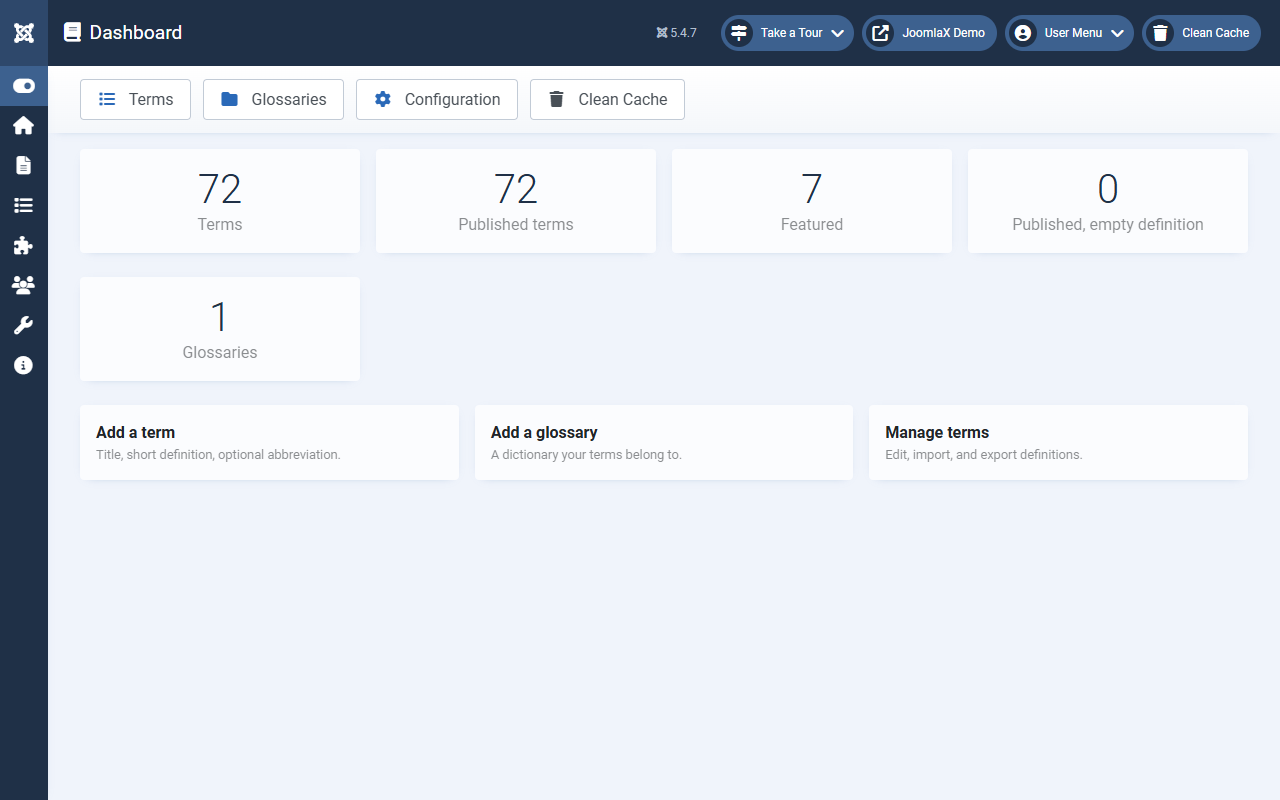
Follow these steps in order. Most people finish in about 15 minutes.
1. Open Easy Glossary
- Click Components > Easy Glossary.
- You should see the Dashboard with counts and quick links.
2. Create a glossary (or install sample data)
- Manual: Glossaries > New > Title > Save & Close
- Fast: Import and Export > Install sample data (creates a Demo Glossary and 34 terms)
3. Add a few terms
- Open Terms > New.
- Fill Term (the word to highlight).
- Choose the Glossary.
- Write a short definition for the tip.
- Set Status to Published, then Save & Close.
4. Create an A-Z menu item
- Menus > [Your menu] > New
- Menu Item Type: Easy Glossary > Glossary A-Z
- Pick your glossary, Save
5. Test in an article
- Write an article that contains one term as normal text (not inside a heading or link).
- Save, clear cache, open the article on the front end.
- Hover the word (or Tab to it). You should see the tip.
Student tip: Use a short unique word first (for example WidgetX) so the highlight is easy to spot.