Google API setup
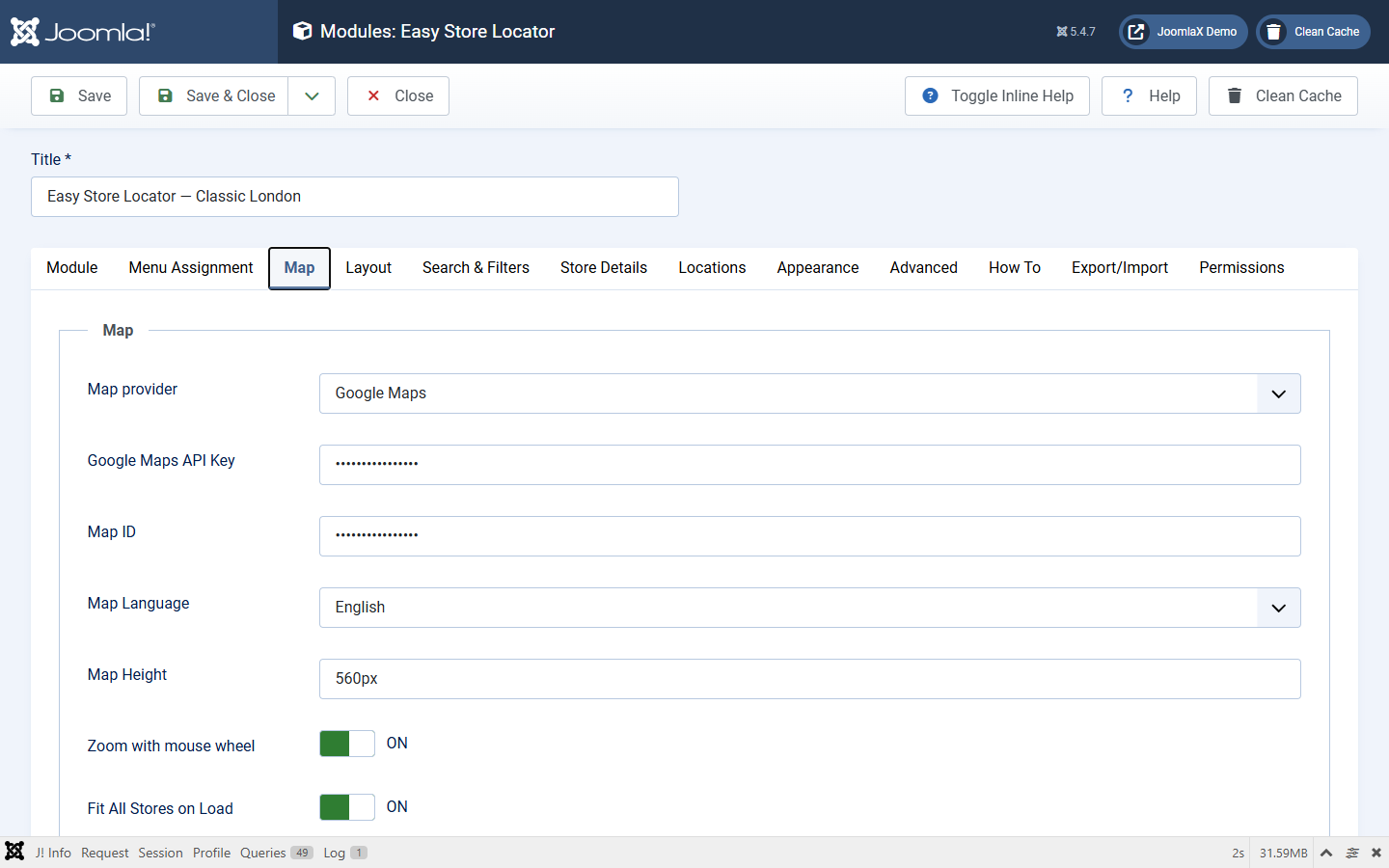
Use these steps when the module Map provider is Google Maps. If an API is not enabled, the matching feature will not work even when the map looks fine.
Which APIs to enable
- Maps JavaScript API: required. Without it the map does not load.
- Places API: required for Google place suggestions in the search box. Without it, suggestions stay off or fail quietly.
- Geocoding API: required for city or ZIP radius search on the front end, and for Batch Geocoder when Configuration uses Google. Without it the map can still show pins, but radius search cannot resolve a place to coordinates.
Steps
- Open Google Cloud Console, create or select a project, and link billing.
- Go to APIs & Services > Library and enable Maps JavaScript API, Places API (if you want suggestions), and Geocoding API (if you want radius search or Google Batch Geocoder).
- Create an API key under Credentials. Restrict it with HTTP referrers for your sites.
- Under API restrictions, allow the same APIs you enabled.
- Important: restricting the key is not enough. Each API must also be enabled on the project Library page.
- Create a Map ID (or use
DEMO_MAP_IDfor tests). - In the module Map tab, paste the browser API key and Map ID.
- For admin Batch Geocoder with Google, also paste a server-capable key under Components > Easy Store Locator > Configuration > Batch geocoder.
- Save, clear cache, hard-refresh the front end.
Start guide: Google Maps Platform get started