Content plugin
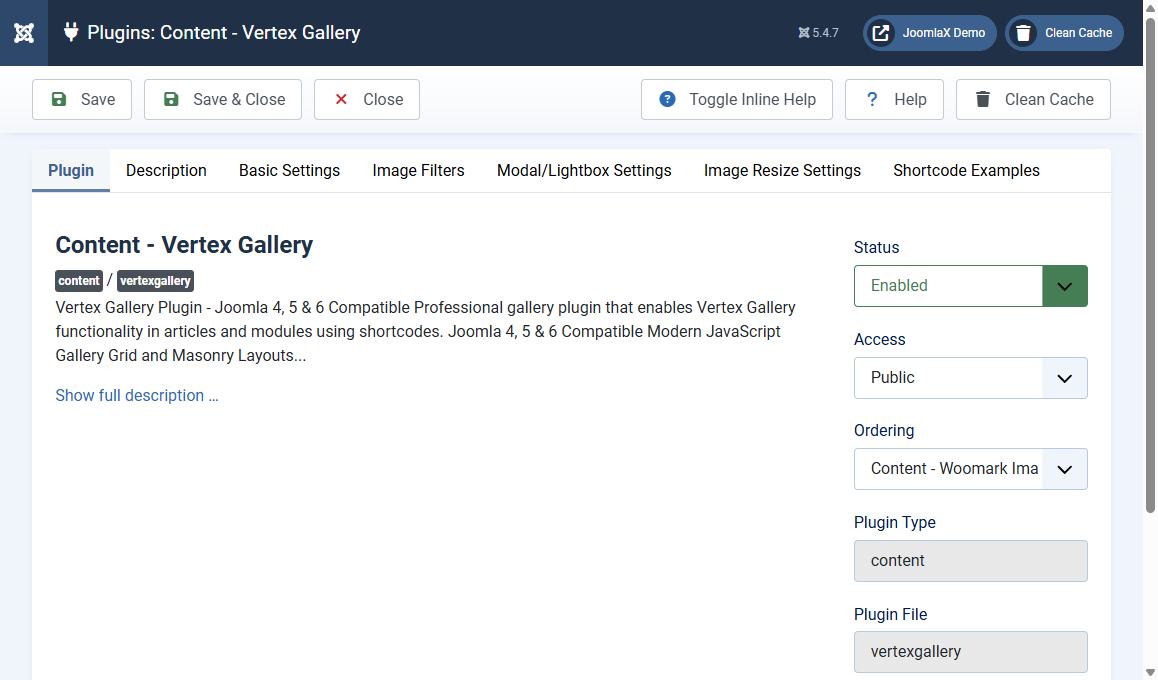
Open System > Plugins, search Vertex Gallery, then open Content - Vertex Gallery.
Status must be Enabled
If this plugin is disabled, shortcodes print as plain text such as {vertexgallery id="5"}. The editor button also warns you when the plugin is off.
What the plugin tabs do
- Plugin: enable or disable, access, ordering among other content plugins
- Basic Settings: default layout, columns, gap, max width, aspect ratio, corners, shadow, accent, filter buttons, captions, auto titles, randomize, single image preview
- Image Filters: default grayscale or other filters
- Modal / Lightbox: default lightbox behaviour for shortcodes that do not override it
- Image Resize: default thumbnail and modal sizes, WebP
- Shortcode Examples: copy-ready snippets (next tab in this documentation)
How defaults and shortcodes work together
Plugin settings are the fallback. A shortcode attribute always wins for that instance. Example: plugin layout is Grid, but {vertexgallery id="5" layout="masonry"} shows masonry on that page only.
Student tip
Keep plugin defaults sensible (Grid, captions on hover, modal on). Override only when one article needs a different look.