Editor: Create gallery
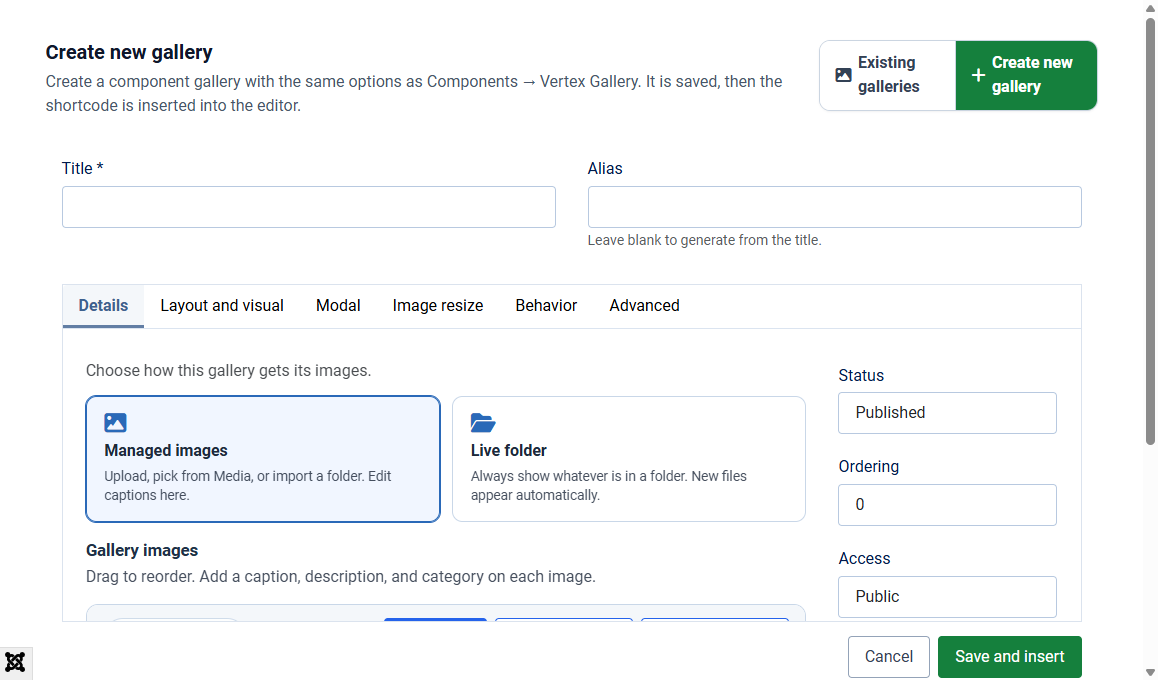
This screen appears when you choose Create new gallery in the editor popup.
- Type a Title.
- Leave Alias blank unless you need a custom one.
- Choose Managed images or Live folder.
- Add photos (upload, Media, or import folder) or set the folder path.
- Optional: open Layout, Modal, Image resize, Behavior, Advanced and set the look.
- Keep Status = Published if the article should show the gallery immediately.
- Click Save and insert.
Cancel closes the popup without saving. After a successful save, the article contains the new shortcode. You can still edit that gallery later under Components > Vertex Gallery.
If Save and insert does nothing
- Title is required
- You need permission to create galleries
- If you used Managed images with zero photos, the shortcode still inserts. Add photos later in the component