Editor button
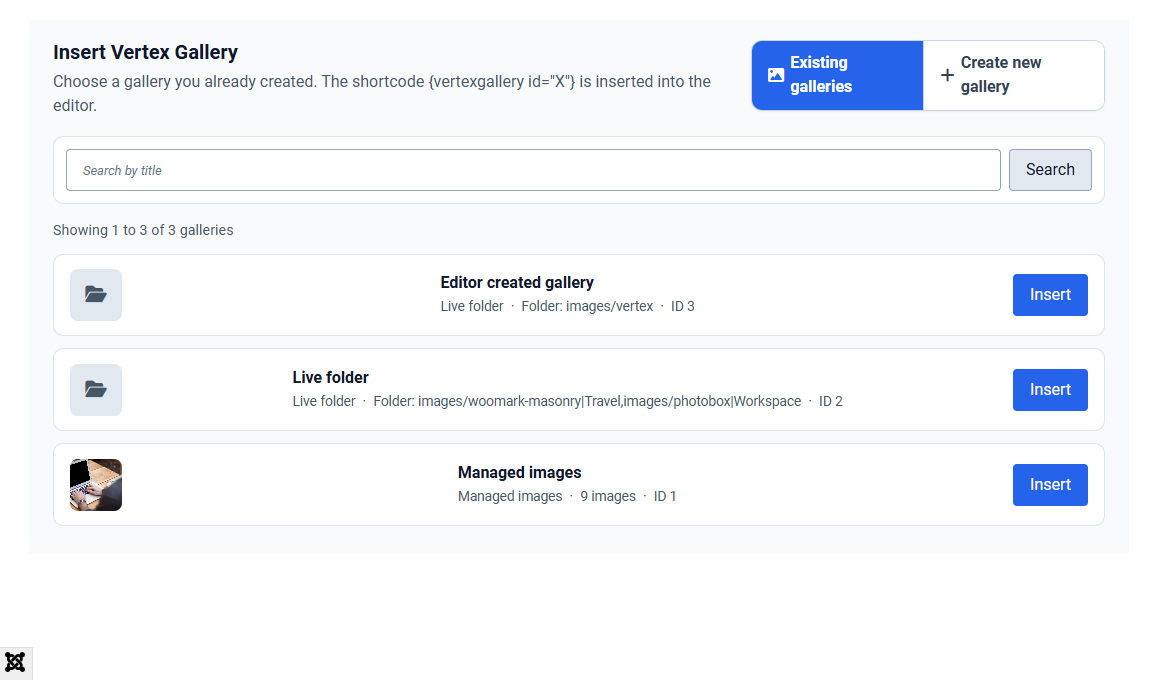
Enable Editors Xtd - Vertex Gallery, then open an article. Click Vertex Gallery in the editor toolbar.
Existing galleries
- Search by title (also matches alias or ID)
- Results are paged (default 20 per page) so a site with many galleries stays usable
- Each row shows title, Managed images or Live folder, image count or folder path, and ID
- Click Insert to place
{vertexgallery id="X"}at the cursor
Create new gallery
Switch to Create new gallery. You get the same options as Components > Vertex Gallery: title, alias, Managed images or Live folder, layout, lightbox, resize, behavior, advanced. Click Save and insert. The gallery is stored in the component, then the shortcode is inserted.
Plugin warning
If Content - Vertex Gallery is disabled, the popup shows a notice with a link to enable it. Without that plugin, the inserted shortcode will not render on the site.
Student tip
Use Existing galleries when the photo set already exists. Use Create new gallery when you are writing the article and the album does not exist yet.